Copilot Skills in PowerPoint: Your Template Sets the Ceiling
Microsoft rolled out reusable Copilot Skills for PowerPoint in July, and the custom skills experience finished rolling out in early August. If you've opened the Copilot pane lately and noticed a Skills menu that wasn't there before, that's the new arrival. It's a good feature. It also makes the gap between a Copilot-ready PowerPoint template and an ordinary one visible much faster than it used to be.
A Skill is a method. Your deck is the material it works on. Give a good method poor material and all you get is a quicker route to the same disappointing deck.
What is a Copilot Skill in PowerPoint?
A Skill is a saved set of instructions that Copilot applies to your presentation on demand. Rather than retyping a long prompt every time you want a deck reviewed or a text-heavy slide made visual, you pick the Skill from the Copilot prompt box (the plus menu, then Choose skills) or call it with an @ mention.
Microsoft ships several already. Review this presentation reads your slides and returns slide-by-slide suggestions on structure, clarity and storytelling, for your review rather than applied automatically. Visualise this slide takes a slide drowning in bullet points and proposes a cleaner treatment. Prepare for questions analyses the deck and anticipates what your audience will ask, which is a fabulous thing to run the night before a board meeting.
You can write your own too. A custom skill is a folder containing a SKILL.md file, uploaded to a designated OneDrive location, where it appears in the Skills menu ready to switch on or off. It's a plain markdown file with your instructions in it. You don't need a developer to write one, which is deliberate on Microsoft's part.
Why your template decides how good the output is
Every Skill has to read your slides before it can do anything with them. It reads structure: layout names, placeholders, the outline, the theme. What it can't read reliably is a slide assembled from floating text boxes that somebody dragged into position at eleven o'clock at night.
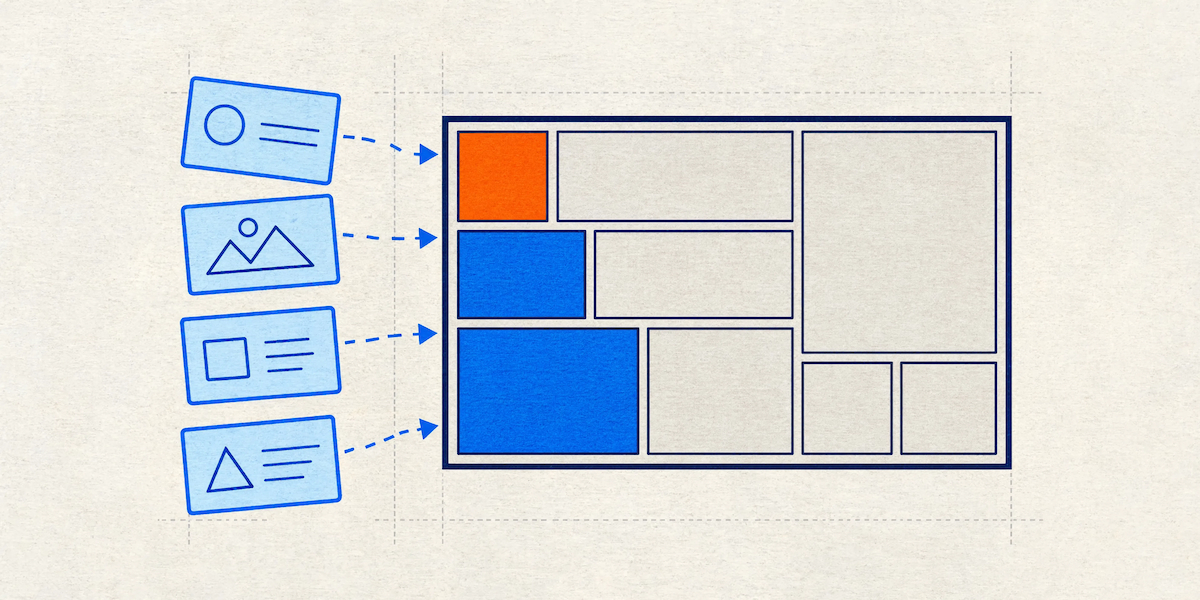
Text in a placeholder is content with a job title. PowerPoint knows it's a title, or body copy, or a caption, because the layout said so. Copilot inherits that understanding for free. Text in a stray text box dropped onto an individual slide is a shape that happens to contain characters, and it sits outside the outline altogether.
Worth clearing up a common misreading while we're here. Text boxes in the Slide Master are fine, and Copilot reads those quite happily. The trouble starts with text boxes added on individual slides, outside the master, doing a job a placeholder should be doing.
Run Review this presentation across a deck built on well-structured layouts and you get feedback about your argument. Run it across a deck of freeform shapes and you get feedback about a deck it only half understands, delivered with exactly the same confidence.
The four things Skills need from your template
After building these files for a living for eighteen years, we can be fairly specific about what makes the difference.
Placeholders that mean something. Title, body, picture, chart, table. Each with a defined position, size and text style set in the Slide Master. When Copilot generates or rewrites a slide, it drops content into placeholders. Give it somewhere sensible to put things and the output comes out formatted. Leave it guessing and it improvises, usually into the middle of your logo.
Layout names a human would recognise. "Title and Content," "Two Column Comparison," "Full Bleed Image with Caption." Not "1_Custom Layout" repeated eleven times. Copilot uses layout names as signals when it decides where content belongs, and so does every person on your team who has ever hunted through the layout gallery.
Theme colours rather than hex overrides. If your brand blue lives in the theme as Accent 1, everything Copilot creates inherits it. If your brand blue only exists as a hex code somebody typed into the custom colour picker on slide 14, nothing inherits anything.
A tidy outline. Skills work from the deck's text structure. If your slide titles live in title placeholders, Copilot can follow the narrative. If they're all text boxes styled to look like titles, it can't, and Review this presentation will politely tell you your deck has no clear structure. Which, technically, it doesn't.
Should you write a custom skill or fix the template?
Both, though they solve different problems and only one of them is load-bearing.
Custom skills are a lovely way to encode the things a template can't hold. House rules on tone. The order your executive summary slides always run in. A reminder that every client-facing deck opens with the problem statement and closes with next steps. Real process knowledge, written down once and reused by everyone.
What a custom skill should never be doing is compensating for structure that should already exist in the file. If your SKILL.md contains a line like "always change the chart colours to our brand palette," you've written a workaround. The template should have done that automatically, because the theme should already carry your palette in the right accent order.
Skills are instructions. Templates are architecture. Instructions can be ignored, misread, or applied inconsistently across a team where half the staff have the Skill enabled and half don't. Architecture just works, for everyone, every time.
This applies well beyond Copilot
Copilot is the most searched-for AI tool in the Microsoft Office world, but it stopped being the only one some time ago. xAI launched Grok add-ins for Word, PowerPoint and Excel through the Microsoft Marketplace in June. OpenAI and Anthropic both have official add-ins for PowerPoint and Word. Copilot itself now runs on a choice of models, with Anthropic's Claude Sonnet 5 available in Copilot for PowerPoint, Word and Cowork since July.
Every one of those tools reads the same underlying file. They all parse the same Office Open XML: the same placeholders, the same theme, the same layout definitions. Structure that serves Copilot Skills serves all of them, which is a comforting thought if your business hasn't finished arguing about which AI to standardise on.
A five-minute test on your own deck
Before you decide whether any of this applies to you, open your most-used presentation and try three things.
Press the Outline View button under the View tab. If you can see your slide titles and body copy laid out as text, your deck has structure Copilot can follow. If the outline is mostly blank while your slides are visibly full of words, that text is sitting in shapes rather than placeholders, and every AI tool that opens the file will have the same difficulty you're now looking at.
Next, click any coloured shape and open the fill colour picker. If the colour is highlighted in the Theme Colours row at the top, you're in good shape. If nothing is highlighted and the swatch appears under Recent Colours instead, that colour was typed in by hand and carries no meaning the file can pass on.
Finally, open the layout gallery under the Home tab and read the names. If you find yourself counting identical thumbnails called "1_Custom Layout," you've found the reason Copilot keeps putting content in surprising places.
None of this requires a licence, an admin, or a meeting. It takes about five minutes and it tells you most of what you need to know.
What Skills still won't do for you
Let's be straight about the ceiling. Run these Skills on a well-built template and you will get a tidy, on-brand, sensibly formatted deck. That's a real result and it saves real hours, particularly on the weekly and monthly reporting decks that eat a team alive.
What you won't get is a presentation that makes a room go quiet. The custom infographic that explains your business model in one image. The build sequence that reveals your argument one beat at a time. The chart redesigned so the point leaps off the slide instead of hiding in a legend. That work is design, and design is still a human doing the thinking.
Formatted and fabulous are different destinations. AI is now reliably good at the first. The second still needs a designer, working from a template built to carry the design without falling over.
Where to start
Open your current template and look at three things. How many of your slides use real placeholders? What are your layouts actually called? Is your brand palette living in the theme, or in people's heads?
If the answers are uncomfortable, that's useful information. A template built from the ground up with this structure in place will serve Copilot Skills, every add-in your team installs next year, and the perfectly ordinary human who just wants to make a deck without breaking anything. It's the same build either way. We just make sure it's correct from the first slide master rather than hoping the AI copes.
Jim is co-founder of Ideaseed and its technical lead, with deep expertise in Microsoft Office template architecture, automation, VBA, VSTO and Office.js development. He builds template systems that hold up at enterprise scale across both Mac and PC, and spends a good deal of his time working out what AI tools can and can't read inside an Office file.
Not sure whether your PowerPoint template is giving Copilot anything useful to work with? Take our free template health check and find out: ideaseed.com.au/questionnaire
Need a branded template? We can turn it around overnight.
Australia's Microsoft Office template specialists with a South Africa team that delivers while you sleep.



RAVE REVIEWS
who we work with


.svg)
.svg)
.svg)
.svg)








