What Content Controls Actually Do in a Word Template
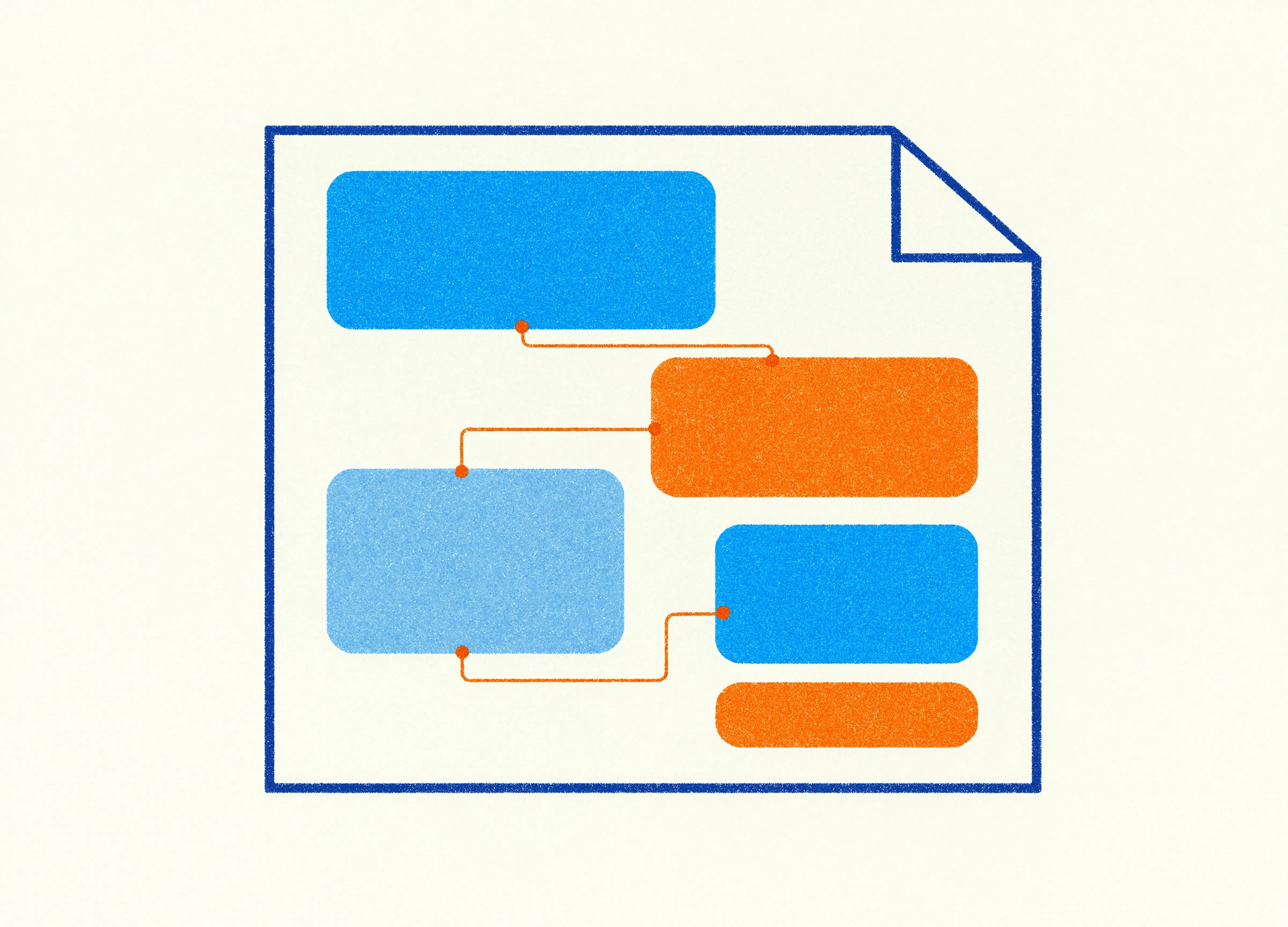
Open almost any business Word template and you'll find the same thing: grey highlighted text in square brackets. [Insert client name here]. [Date]. [Project title]. Somebody typed those in years ago as a helpful signpost, and they've been causing trouble ever since, because there's nothing stopping a user from deleting the brackets, keeping the highlight, and sending a proposal out with a yellow smear across page one.
Content controls are Word's answer to that problem, and most businesses using Word templates either don't know they exist or have met exactly one of them. There are nine, they do different jobs, and understanding which is which changes what a template can do.
What is a content control in Word?
A content control is a container object in a Word document that holds a specific type of content and can be configured to behave in specific ways. It has a defined boundary, a title, placeholder text that disappears when someone types, and a set of properties that control whether the content inside it can be edited, whether the control itself can be deleted, and what style is applied to whatever goes in.
The difference from ordinary text is that Word knows the control is there. It can be found, targeted, locked, linked to other content, filled in programmatically, and tabbed between. A square bracket placeholder is just characters on a page that nobody is tracking.
You'll find them on the Developer tab, which isn't visible by default. File, Options, Customise Ribbon, tick Developer. That single hidden checkbox is the main reason most Word users have never encountered any of this.
The nine controls and what each is for
Rich text holds formatted content: multiple paragraphs, bold, bullet lists, even tables and images. Use it where the content varies in shape, like an executive summary or a scope section.
Plain text holds unformatted text and applies the template's formatting to whatever goes in. This is the one that saves you from pasted email content. Somebody copies a client name out of Outlook in Calibri 11 purple, drops it into a plain text control, and it arrives in your brand font at the right size. Set it to single-paragraph and it won't accept line breaks either.
Picture holds an image and, critically, sizes it to the control rather than letting it arrive at whatever dimensions it happens to be. Client logos on a cover page belong in a picture control.
Building block gallery gives the user a dropdown of pre-built content chunks stored in the template. Standard clauses, approved boilerplate paragraphs, alternative cover designs, a choice of three signature blocks. This is the control that lets you offer options without offering chaos.
Combo box is a dropdown that also accepts typed entries, for lists that cover most cases but need an escape hatch.
Drop-down list is a dropdown that accepts nothing else. Document classification, business unit, approval status: anything where a typo would matter.
Date picker gives a calendar and, more usefully, forces a date format. If your business writes dates as 15 September 2026 and half your documents say 09/15/26, this control ends the argument.
Check box does what it says, and works properly in a printed or PDF form.
Repeating section is the one worth knowing about. Wrap a block of content in a repeating section control and the user gets a plus icon that duplicates the whole block, correctly formatted, as many times as they need. A project team member with a photo, name, role and bio. A risk with its rating and mitigation. A line item in a schedule. It's the difference between a template that anticipates variable content and one that hopes the user can copy and paste without breaking the layout.
The feature that changes everything: mapped controls
Most people never see this one. A content control can be linked to a document property, and multiple controls can be linked to the same one. Type the client name once and it appears on the cover page, in the header of every page after the first, in the footer, in the introduction paragraph and on the back cover. All of them, instantly, correctly.
Word ships with a set of built-in properties (Title, Subject, Company, Author, Comments and a few others), and you can map controls to custom XML for anything beyond that. Insert, Quick Parts, Document Property gives you the built-in ones directly on the ribbon.
For a 60-page proposal template where the client name appears 40 times, this is the entire argument. Without it, somebody is doing find-and-replace on a document that's already been through three rounds of tracked changes, and missing four instances. With it, they type it once.
Cross-reference fields and StyleRef fields do related work, pulling a heading into a running header or a section title into a footer. Between mapped controls and field codes, a well-built Word template can have a document assemble most of its own repeated content.
Properties: where the control gets its manners
Right-click a control, choose Properties, and you get the settings that decide how it behaves under pressure.
Title and tag name the control. The title shows on the control's tab when it's selected. The tag is what VBA and Office.js code use to find it, so if you've got any automation running against the template, consistent tagging is what makes that automation maintainable.
Content control cannot be deleted stops a user removing the container while still letting them fill it in. This is the setting that keeps a mandatory section in a document.
Contents cannot be edited locks what's inside. Combined with the previous one, you get a block that stays put and stays correct: a legal disclaimer, a set of standard terms, a compliance statement.
Use a style to format text typed into the empty control is the one that keeps a template consistent. Pick the paragraph or character style the content should take, and whatever gets typed or pasted arrives wearing it.
Remove content control when contents are edited is worth knowing about because it's occasionally what you want, for one-time placeholders that should disappear cleanly, and almost never what you want otherwise.
Content controls versus legacy form fields
Word still supports legacy form fields from the 1990s, and you'll find them in inherited templates. They require the document to be protected as a form to work, which means the rest of the document can't be edited, which means most businesses turn protection off and the fields stop functioning.
Content controls don't need document protection to behave. You can lock individual controls while leaving the rest of the document fully editable, which is how a template can be simultaneously controlled and usable. If you've inherited a template built on legacy fields, rebuilding on content controls is usually the single change that gets people to actually use it.
What content controls won't fix
They aren't a substitute for styles. A template with beautiful content controls sitting on top of direct formatting is still going to fall apart, because the controls manage what goes in the containers while the styles manage how the document holds together. Build the style hierarchy first.
They're also not a database. A repeating section control with forty entries is fine. A document trying to be a project management system through content controls is a Word document doing an impression of software, and it'll be slow and fragile. That's the point where a proper add-in takes over.
And support isn't perfectly even. Word for Mac handles the common controls well but has historically been patchier with some of the more complex arrangements, and Word on the web has its own limits. If your business runs on both platforms in earnest, the template needs testing on both, and any automation sitting alongside it is better built in Office.js than VBA, because Office.js runs on Mac, PC and the web from the same codebase.
What a well-controlled template feels like to use
The test is what happens on a Friday afternoon when somebody who's never opened the template needs a proposal out by five.
They open it. The cursor is already in the first control. They type the client name and watch it appear in four other places. They tab to the next one, choose a date from a picker that formats it correctly, tab again, pick their business unit from a dropdown. They hit the plus icon three times to add three team members. The standard terms section is there, correct, and they couldn't delete it if they tried.
Nobody has to know why it works. That's the standard. A template that requires a briefing session before anyone can use it has failed, however clever it is underneath.
If your current Word template is a sea of yellow highlighting and square brackets, the upgrade path is real work: a style hierarchy, a set of properly configured controls, and a rebuild rather than a retrofit. It's also the difference between a template people use and a template people work around.
Claire is a design and template specialist at Ideaseed, working across Word and PowerPoint template builds, document design and accessibility. She spends a lot of her time turning inherited templates into ones people can actually use without instructions.
Curious how your Word template would hold up? Our free template health check takes a few minutes and shows you what's worth fixing.
Need a branded template? We can turn it around overnight.
Australia's Microsoft Office template specialists with a South Africa team that delivers while you sleep.


RAVE REVIEWS
who we work with


.svg)
.svg)
.svg)
.svg)








