Copilot's Brand Kit Needs Better Templates (And Here's What Better Looks Like)

Microsoft's Brand Kit is supposed to solve one of the biggest problems in corporate presentations: brand consistency at scale. Upload your templates, your logos, your colour palette, and Copilot will generate on-brand PowerPoint decks for everyone in the business. That's the pitch, anyway.
But Brand Kit is only as good as the templates you feed it. And most templates that businesses upload aren't built for this. They're built for humans who can interpret a layout, make judgement calls about spacing, and know when something looks wrong. Copilot can't do any of that. It needs structure, logic, and explicit guidance baked into the template itself. In other words, your templates need to be AI-ready, and most of them aren't.
So what does a Copilot-ready PowerPoint template actually look like? Let's walk through it.
What Does Brand Kit Actually Do?
Brand Kit is a feature inside the Microsoft 365 Copilot app that lets brand managers upload approved brand elements: logos, colours, fonts, images, templates, brand voice guidelines, even a PDF of your brand guidelines. When someone uses Copilot to create a presentation, it draws on all of this to produce slides that follow your brand standards.
There's a hierarchy at play. Your PowerPoint template is the primary source of truth. Copilot looks at the sample slides, analyses the layouts, and uses that structure to generate new content. Brand Kit then layers on additional guidance: image style, logo placement rules, tone of voice. The two work together, but the template does the heavy lifting.
If your template is thin (a title slide, a content slide, and a blank layout), Copilot has almost nothing to learn from. It falls back on its own defaults, and the output looks generic. If your template is rich with varied slide types, proper placeholders, and multiple content densities, Copilot has the scaffolding it needs to produce something that actually looks like your brand.
Why Most Templates Fail the AI-Ready Test
Here's a common scenario. A business has a PowerPoint template that works perfectly well for humans. Someone opens it, picks a layout, types in their content, maybe adjusts a few things. No problems.
But the same template, handed to Copilot via Brand Kit, produces slides that look nothing like the intended design. Text overflows. Layouts get ignored. The wrong fonts show up. Colours are close but not quite right.
The reason is almost always the same: the template was designed visually but not structurally. And Copilot needs structure.
Three things tend to go wrong. First, the template uses text boxes on individual slides rather than proper placeholders defined in the Slide Master. Copilot reads placeholder structures in the master to understand where content belongs: title here, body text there, image here. When users add freeform text boxes directly onto slides outside the master structure, Copilot can't map content to those elements reliably. Second, the theme colours and fonts are applied manually on individual slides rather than defined in the Slide Master. Copilot reads theme definitions. One-off formatting on individual slides gets ignored. If your headings are Arial Bold because someone formatted them that way on each slide, Copilot won't know that Arial Bold is your heading font. It needs to see that defined at the theme level. Third, there aren't enough sample slide types for Copilot to learn from.
How Many Sample Slides Does Copilot Need?
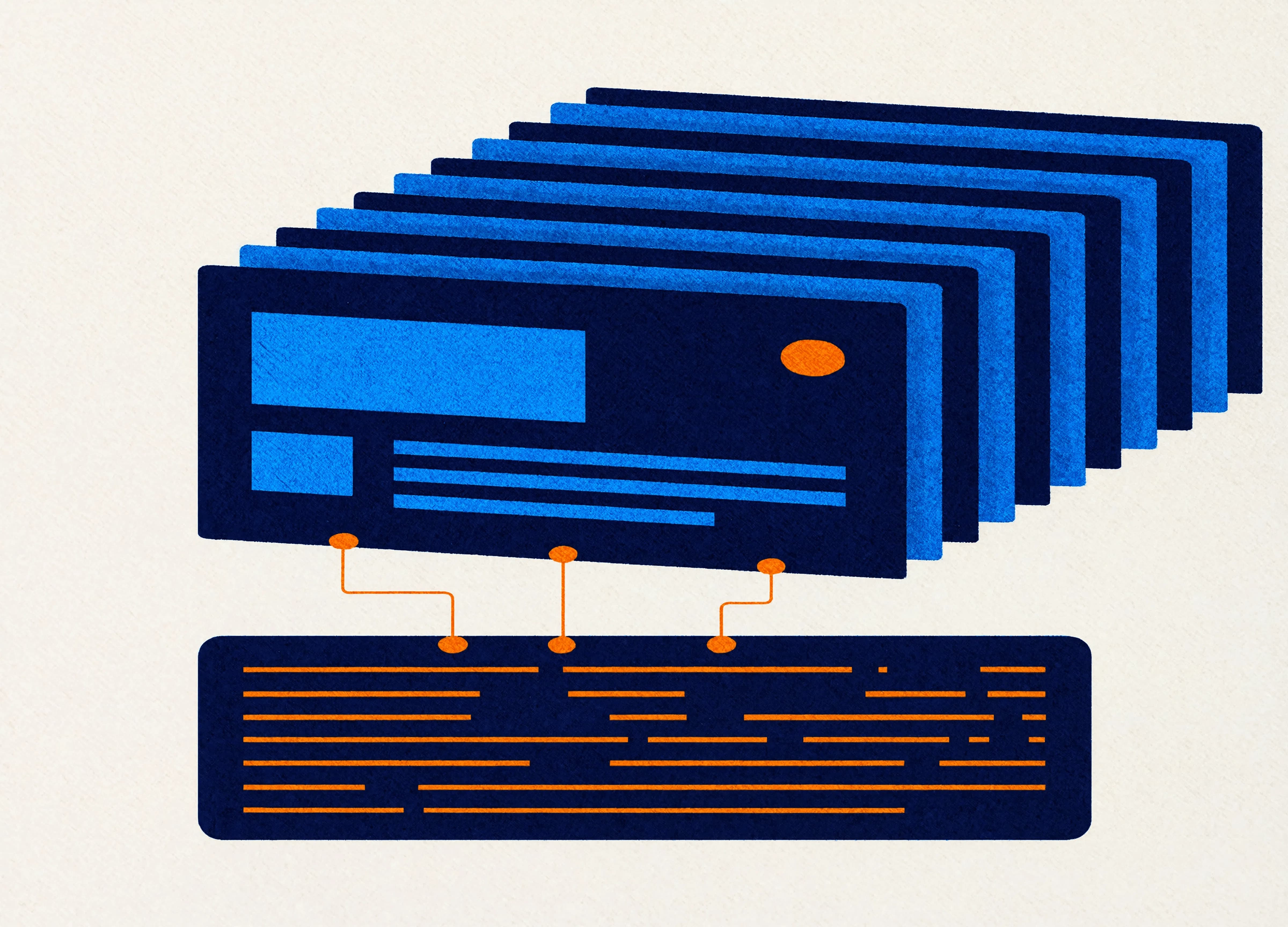
Microsoft's own guidance recommends at least 12 representative slide layouts. That number surprises people, because most templates ship with four or five layouts and call it done.
But Copilot needs to see variety. It needs to understand how your brand handles a title slide, a section divider, a text-heavy layout, a text-and-image split, a full-bleed image, a data visualisation, a comparison, a timeline, a quote, and a closing slide. If you haven't shown it what your brand's version of a chart slide looks like, it will invent one, and it probably won't match your design language.
Beyond variety, Copilot also needs to see different content densities. Microsoft recommends including light-density slides (titles and subtitles with generous whitespace), medium-density slides (balanced layouts with text on one side and a large image on the other), and high-density slides (content-rich layouts with minimal whitespace, multi-column text, and detailed charts or tables). This teaches Copilot how your brand scales from a clean title card to a packed data slide.
The Placeholder Problem (and Why It Matters More Than You Think)
Placeholders are the single most important structural element in an AI-ready template. They're defined containers that tell Copilot exactly where content should go and what type of content belongs there: title, subtitle, body, image, chart, table.
When a template uses proper placeholders in the Slide Master, Copilot can place content with precision. When slides rely on freeform text boxes added outside the master structure, Copilot has no map to follow. And AI without a map is a problem for your brand.
This is where template builds start to get technical. Placeholders need to be set up in the Slide Master, with the right content types assigned. The positioning, sizing, and spacing need to account for different amounts of content. And the relationships between elements on a slide need to be logical, structurally sound across different content scenarios.
We build templates this way as standard practice. For years, that level of structural rigour was about making templates that don't break when 500 people are editing them. Now it's also about making templates that produce good AI output. The technical requirements have converged.
Theme Definitions: The Invisible Foundation
Your template's theme defines the colours, fonts, and effects that Copilot references when generating slides. This sounds basic, but the number of templates we've audited where the theme says one thing and the actual slides do something different is staggering.
A common scenario: the brand colour palette includes six carefully chosen colours, but they were never mapped to the theme colour slots in Slide Master. Instead, someone picked the hex codes from a brand guide and applied them manually. The slides look correct to a human. To Copilot, the theme colours are still the default Microsoft blues and oranges.
Fonts work the same way. If your heading font and body font aren't defined in the theme, Copilot won't use them consistently. It will use whatever the theme says, which might be Calibri by default.
Getting theme definitions right requires going into Slide Master, creating custom theme colours (mapped to your brand palette in the correct slots), setting custom theme fonts, and making sure every element on every sample slide references those theme definitions rather than using manual formatting. This is template architecture, and it's the part most people skip.
What a Copilot-Optimised Template Build Looks Like
When we build AI-ready PowerPoint templates at Ideaseed, the checklist goes well beyond "make it look nice." The template needs theme colours mapped to your full brand palette. Theme fonts set for headings and body. At least 12 sample slide layouts covering different content types and densities. Every content area using proper placeholders defined in the Slide Master (no freeform text boxes on individual slides). Slide Master and layouts structured so that inheritance works correctly. No overlapping elements that might confuse AI content placement. Objects styled consistently using theme references instead of manual formatting.
On top of that, if you're using Brand Kit, the template needs to work in concert with the other elements you've uploaded: your logo variations, your image style guidelines, your brand voice description. The template provides the structural foundation, and Brand Kit provides the additional context. Both need to be right.
Can You Retrofit an Existing Template?
Sometimes, yes. If your current template has a solid Slide Master structure and the main issues are missing sample slides or incorrectly mapped theme colours, a retrofit can work. We add the missing layouts, fix the theme definitions, convert text boxes to placeholders where possible, and test the output with Copilot.
But if the template was built without Slide Master structure (and plenty of templates are), a retrofit is usually more work than starting fresh. You're trying to bolt structural rigour onto a foundation that was never designed for it. In those cases, a purpose-built AI-ready template is faster, cheaper in the long run, and produces better results.
If you're not sure where your templates sit on that spectrum, our AI scorecard can give you a quick read on how ready your current templates are for Copilot and other AI tools.
The Bigger Picture: Your AI-Ready Template Ecosystem
Brand Kit and Copilot-ready templates aren't just a PowerPoint conversation. Microsoft is building a world where AI agents in Word, Excel, and PowerPoint all reference your brand standards and template structures. The Word Agent can draft documents using your templates and brand voice. The PowerPoint Agent can create presentations grounded in your brand. The direction is clear: your template ecosystem is becoming the foundation that AI builds on.
If that foundation is solid, AI output will be consistent, on-brand, and useful. If it's shaky, every AI-generated document will need manual cleanup, which defeats the entire purpose.
This is why we talk about AI-ready document ecosystems rather than individual templates. Your PowerPoint template, your Word templates, your brand guidelines, your style hierarchies, your content controls, your automation: they all need to work as a system. And that system needs to be built for both human users and AI tools.
Georgie is the co-founder of Ideaseed, with over 25 years' experience in Microsoft Office template design, build, and automation. She and her team specialise in creating AI-ready, enterprise-grade templates that bridge the gap between design vision and technical reality, working with businesses across Australia, South Africa, and worldwide.
Want to find out if your templates are ready for Copilot and Brand Kit? Take our free template health check and we'll give you an honest assessment of where you stand.
Need a branded template? We can turn it around overnight.
Australia's Microsoft Office template specialists with a South Africa team that delivers while you sleep.


RAVE REVIEWS
who we work with


.svg)
.svg)
.svg)
.svg)








