The Leave-Behind Deck: Designing Presentations That Work Without You in the Room

You spent three days building a presentation. You delivered it beautifully. Everyone in the room was nodding. Then someone forwarded it to the CEO, who opened it on their phone in an airport lounge, flicked through ten slides without context, and formed an opinion about your proposal in under two minutes.
Welcome to the reality of how presentations actually get consumed in 2026.
The shift has been building for a while, but it's now the dominant pattern in how business presentations work. Your deck gets presented once, maybe, in a meeting. Then it gets forwarded, shared, saved to a Teams channel, opened on a laptop at 10pm, reviewed on a tablet during a commute, or pulled up on a phone during a coffee break. The presenter isn't there. The context isn't there. The deck has to do all the talking on its own.
If your presentations are designed to only work when you're standing next to them, narrating every slide, you've got a problem.
The "presentation support" trap
Traditional presentation design wisdom says slides should be visual support for the speaker. Minimal text. Big images. Let the presenter fill in the detail. And that's still solid advice for the moment you're actually presenting.
The issue is that the moment of presenting has become a shrinking portion of a deck's total lifespan. A presentation might be delivered live to ten people in a meeting room, but then reviewed asynchronously by fifty others over the following week. The live audience gets the full context, the energy, the verbal explanation. Everyone else gets a series of slides that were never designed to stand alone.
We see this constantly in the work we do. A client will invest heavily in a beautiful presentation for a board meeting or a pitch. Gorgeous visuals, perfectly paced, designed for a confident speaker to bring to life. The meeting goes well. Then the deck gets forwarded to stakeholders who weren't there, and suddenly the gorgeous visuals without verbal context tell half the story at best. The decision-maker opens it on their laptop, flicks through it in five minutes, and doesn't get the nuance that made the presentation compelling when it was delivered live.
So the deck gets misunderstood, context gets lost, and decisions get made on incomplete information. Or worse: someone looks at a beautifully minimalist slide with a single word and a stock photo and thinks "this tells me nothing." Which, without the presenter, it doesn't.
What a "leave-behind" deck actually is
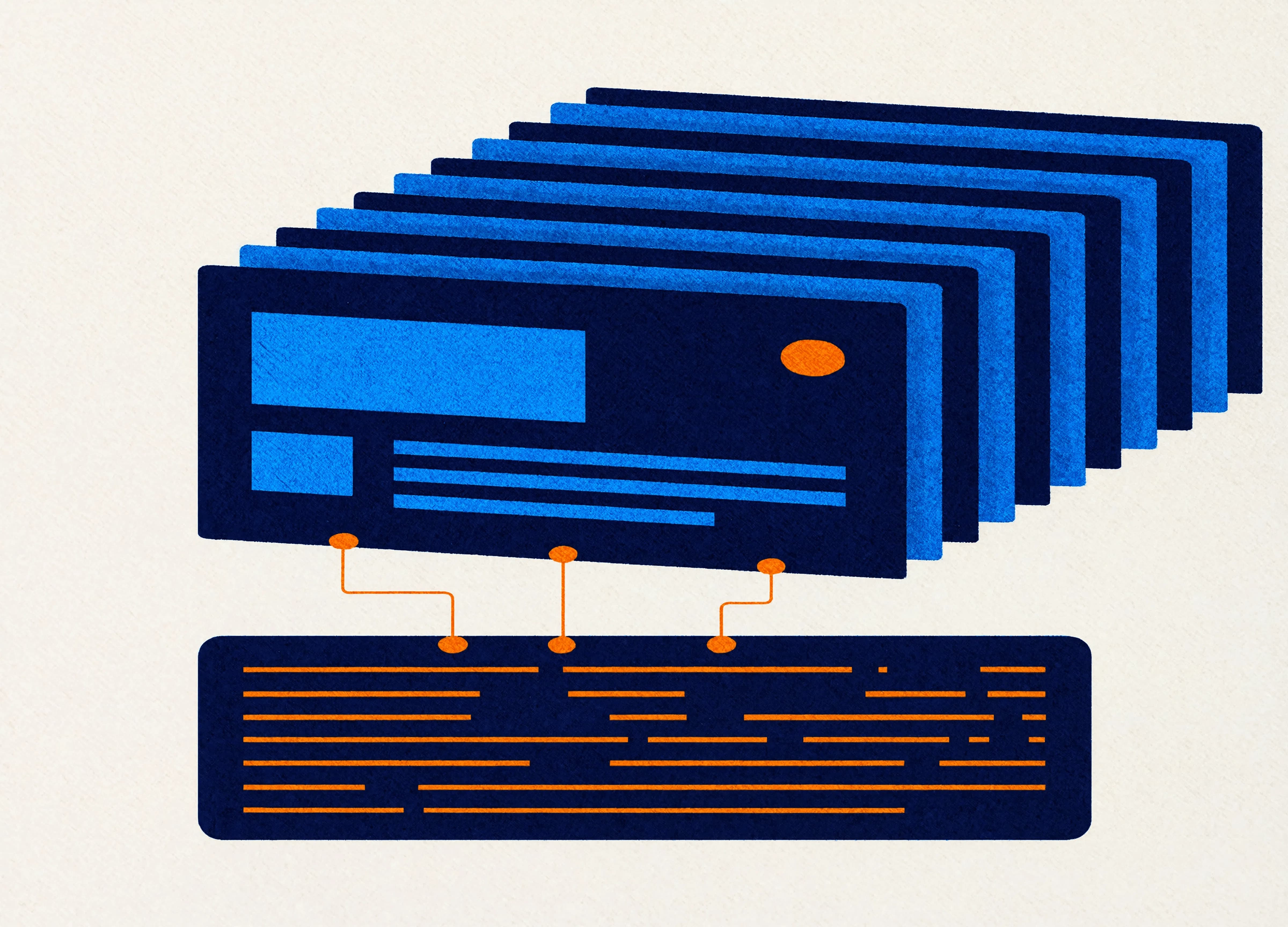
A leave-behind deck is a presentation designed to communicate clearly whether the presenter is in the room or not. It's self-contained. It carries its own narrative. Someone picking it up cold, with no prior context, should be able to understand the argument, follow the logic, and reach the intended conclusion without needing anyone to walk them through it.
This doesn't mean cramming every slide with paragraphs of text. That's not the answer either. The goal is purposeful self-sufficiency: enough context on each slide that the meaning is clear, with a visual structure that guides the reader through the story you want to tell.
Think of it like the difference between lecture notes and a well-written article. Lecture notes make perfect sense if you were in the room. A well-written article makes sense regardless of where or when you read it.
The structural differences
Designing for asynchronous consumption changes how you approach several core elements of a presentation.
Slide titles need to work harder. In a presenter-led deck, a slide title might be a topic label: "Q3 Revenue." In a leave-behind, the title should be the takeaway: "Q3 Revenue Exceeded Target by 14%." The reader should be able to scan the titles alone and get the story arc. If your slide titles read like a table of contents, they're not working hard enough.
Supporting text needs context. A chart on its own tells the reader there's data. A chart with a clear annotation explaining what the data means and why it matters tells the reader the story. In a live presentation, you provide that context verbally. In a leave-behind, the slide needs to provide it visually. This means short callout boxes, clear annotations, or a brief insight statement alongside each data point.
Narrative flow needs to be explicit. When you're presenting live, you create transitions verbally: "So given what we've just seen about the market, let's look at how our approach differs." In a leave-behind, that connecting logic needs to exist on the slides themselves. Transition slides, section dividers, or even a simple "so what does this mean?" framing slide help the reader follow the thread without you there to weave it for them.
Speaker notes take on a different role. In the old model, speaker notes were prompts for the presenter. In a leave-behind context, they become extended commentary for the reader. Some organisations use speaker notes as the detailed written narrative that accompanies each slide, creating a document-presentation hybrid that works for both live and asynchronous consumption. It's a smart approach, and PowerPoint supports it well.
Designing for the small screen
Here's something that trips up a lot of people: a significant portion of your asynchronous audience is reading your deck on a phone or tablet. The 16:9 widescreen format that looks great on a projector becomes surprisingly hard to read on a 6-inch screen.
This has a few practical implications. Font sizes need to be larger than you think. If your body text is 12pt and looks fine on a desktop, it's going to be unreadable on a phone. Aim for 18pt minimum for body text and 28pt or larger for titles. That might feel enormous if you're used to cramming information onto slides, but your mobile readers will thank you.
Complex layouts suffer on small screens. A slide with four columns of data, each with its own heading and subtext, might be perfectly legible on a 55-inch conference room display. On a phone? It's a blur of tiny text. Simpler layouts with fewer elements per slide travel better across screen sizes.
Some organisations are starting to experiment with vertical (9:16) slide formats for decks they know will be consumed primarily on mobile. It's a bold move and it won't suit every context, but for internal updates, quick reports, or social-style content, it's worth considering. PowerPoint's custom slide size feature makes this easy to set up.
The "two-mode" template approach
The smartest organisations we work with don't choose between "presenter deck" and "leave-behind deck." They build template systems that support both modes.
This works through thoughtful master slide design. A single PowerPoint template can include layouts optimised for live presenting (bigger visuals, minimal text, high impact) alongside layouts designed for asynchronous reading (more context, supporting text, self-explanatory charts). The presenter picks the appropriate layouts based on how the deck will be used.
Some templates go further, including a "presentation mode" set of master slides and a "document mode" set within the same file. The content stays the same; the visual container adapts to the context. It's elegant, practical, and stops people from having to maintain two separate versions of the same presentation.
Building this kind of flexibility into a template requires proper master slide architecture. The layouts need to be designed, not thrown together. They need consistent spacing, typographic hierarchy, and visual rhythm. And they need to be built so users can switch between modes without accidentally breaking the formatting.
It's exactly the kind of systems thinking that separates a professional template from a PowerPoint file with a logo on it.
Practical steps to get started
If your current presentations are firmly in the "only works with a presenter" camp, here are some practical starting points.
Audit your slide titles. Go through a recent deck and read only the titles, in order. Do they tell a coherent story? If you can't follow the narrative from titles alone, your asynchronous readers can't either. Rewrite titles as takeaways rather than topic labels.
Add context to your data. Every chart, graph, or data point should have a short annotation or insight statement. What does this data mean? Why does it matter? Don't make the reader figure it out on their own.
Test on a phone. Email your latest presentation to yourself and open it on your phone. Can you read it? Does the layout hold up? If not, simplify. Increase font sizes. Reduce the number of elements per slide.
Consider your speaker notes. Are they presenter prompts or reader commentary? If you know your deck will be forwarded, treat speaker notes as the extended narrative that gives the reader the full picture.
And if you're ready to think about this more systematically, it's worth looking at your template architecture. A well-designed template that supports both live and asynchronous modes means every deck your organisation produces is ready for however it ends up being consumed.
Wondering how your current presentation templates hold up? Our free Template Health Check gives you a clear picture of where your template system stands, and where there's room to improve.
Need a branded template? We can turn it around overnight.
Australia's Microsoft Office template specialists with a South Africa team that delivers while you sleep.

RAVE REVIEWS
who we work with


.svg)
.svg)
.svg)
.svg)








