How to Get a Properly Tagged PDF Out of Word
You've done the work. Every heading uses a proper Word style. Every image has alt text. The tables have header rows. You run the Accessibility Checker and it comes back clean.
Then you export to PDF, somebody opens it in Acrobat, and the accessibility report says the document has no tags at all.
This happens constantly, and it's almost always the same cause: the PDF was made through the wrong route. Word will produce a properly tagged, accessible PDF, and it will also produce a flat, untagged picture of your pages, and the two options sit about three centimetres apart in the interface.
What is a tagged PDF?
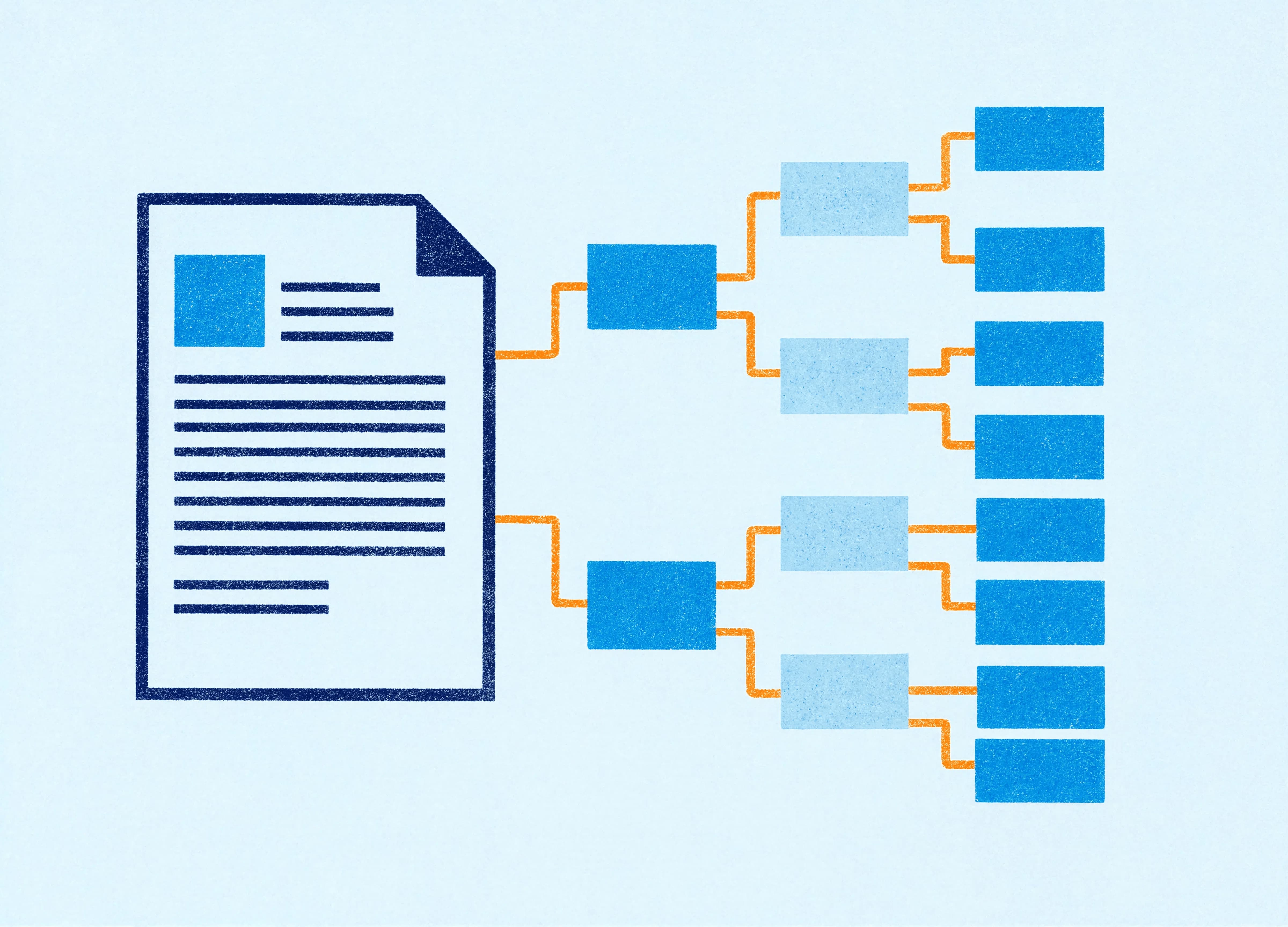
A tagged PDF contains a hidden structural layer describing what each piece of content is: this is a level-two heading, this is a paragraph, this is a list with four items, this is a table with a header row, this is an image and its description reads as follows.
Without that layer, a PDF is a set of characters positioned on a page. A screen reader can usually read the characters out, in whatever order they happen to sit in the file, with no idea which ones are headings, no way to jump between sections, and no description for the images. That's the difference between a document somebody can navigate and one they have to endure.
Tagging is what WCAG 2.1 and the PDF/UA standard require, and it's what accessibility legislation is pointing at when it talks about documents being perceivable and operable. For government agencies in Australia, for anything covered by the Disability Discrimination Act, and for businesses selling into the EU under the European Accessibility Act, an untagged PDF is a compliance problem sitting in plain sight.
The two export routes, and why one of them fails
On Windows, use File, Save As (or File, Export, Create PDF/XPS) and choose PDF. Before you hit save, click Options. In that dialogue there's a checkbox labelled "Document structure tags for accessibility". It's usually ticked by default. Confirm it, every time, because it can be turned off and it stays off.
In the same dialogue, make sure "Optimise for" is set to Standard rather than Minimum size. Minimum size strips things you want kept.
File, Print, Microsoft Print to PDF is the route that fails. It produces a visually identical file with no tag structure whatsoever, because it's a print driver and printers don't care what a heading is. Any "print to PDF" utility, any browser-based print dialogue, any third-party virtual printer: same outcome. If your business has a documented process that says "print to PDF", that process is generating inaccessible documents and has been for years.
On Mac, Word's File, Save As, PDF gives you a "Best for electronic distribution and accessibility" option. Choose it. The macOS system print dialogue's "Save as PDF" button is the print route again, and produces the same untagged file.
What carries through, and what gets lost
Assuming you've exported correctly, this is what makes the trip.
Headings become heading tags, but only if they're Word heading styles. Text that's been manually made 18pt and bold looks like a heading and exports as a paragraph, so the screen reader user gets no navigation and the document outline is empty. This is the single most common failure in inherited documents.
Lists become list tags, if they're real Word lists. A paragraph beginning with a hyphen and a space is a paragraph beginning with a hyphen.
Tables become table tags, and the header row becomes a header row if you've set it in Table Properties, Row, "Repeat as header row at the top of each page". That checkbox does double duty: it repeats the header visually across page breaks and marks the row as a header for assistive technology.
Alt text travels with images, as long as it's set on the image itself. Images marked as decorative export correctly as artifacts and get skipped, which is what you want for a divider rule or a background pattern.
Hyperlinks keep their link text, which is why "read the full annual report" is worth writing instead of pasting a URL. A screen reader announcing a forty-character link is a small cruelty.
Headers and footers become artifacts, meaning they're excluded from the reading order. Correct behaviour, and a good reason to keep anything essential out of them.
The things that break it without telling you
Text boxes are the biggest offender. A floating text box sits outside the main text layer, so it either vanishes from the reading order entirely or turns up somewhere unexpected, usually at the end. Anything a reader needs belongs in the document body, in a table cell, or in a frame that sits in line with text.
The same applies to images with a text wrap setting of "in front of text" or "behind text". Set images to "in line with text" wherever you possibly can. It constrains the layout, and it's the price of a correct reading order.
Tables used for layout rather than data are a persistent problem in older templates. A two-column layout built as an invisible table tells a screen reader there's tabular data to navigate, when there isn't. Use columns, or use a proper layout structure.
Merged and split cells complicate the table tags, sometimes badly. A simple grid exports cleanly. A table with three levels of merged headers will need manual repair in Acrobat, which nobody has time for and nobody does.
And the document title. Word sets the PDF's title from the filename unless you've filled in the Title property (File, Info, Properties). An untitled PDF announces itself as "Q3-report-FINAL-v7-USE-THIS-ONE.pdf", which fails a WCAG success criterion and sounds exactly as professional as it reads.
Language, and the passage everyone misses
Set the document language in Word (Review, Language, Set Proofing Language) and it travels to the PDF so screen readers use the right pronunciation. English (Australia) rather than English (United States) matters more than you'd think for a document full of place names.
If a passage sits in another language, select it and set the language on that selection specifically. A French quotation read aloud in an Australian English voice is unintelligible, and it takes ten seconds to fix at the source.
Build it into the template
Every item above is a decision that can be made once in the template and inherited by every document afterwards.
The style hierarchy is the accessibility structure. If Heading 1 through Heading 4 are defined, named sensibly and actually used, the tag tree writes itself. If the template offers a style called "Big Blue Text" that people use for headings, it won't.
The template can carry the document language, a Title property mapped to a content control on the cover page, tables with header rows already configured, a caption style that sits with its image, and layouts built without floating text boxes. It can also carry the absence of the things that break: no invisible layout tables, no decorative images without the decorative flag, no colour combinations below 4.5:1 contrast.
We build accessibility into templates rather than treating it as a checking stage, because a checking stage happens at 4pm on the day the document is due and gets skipped. Structure that's already correct doesn't need checking under pressure.
How to actually test it
Three passes, in order.
Word's own Accessibility Checker (Review, Check Accessibility) catches missing alt text, missing table headers, poor contrast and a few structural issues. Run it before export. It's fast and it's free and most people have never opened it.
Acrobat Pro's Accessibility Check runs against the exported PDF and tells you whether the tags are actually there and whether they make sense. Open the Tags panel and look at the structure. If it says "No Tags Available", go back and check which export route you used.
PAC (the PDF Accessibility Checker) is free, tests against PDF/UA, and is more demanding than Acrobat's own check. If a document passes PAC, it'll pass most audits.
For a document that's going to be published, read by thousands of people, or submitted as part of a tender, it's worth doing all three. For internal documents produced weekly, get the template right and spot-check quarterly.
The five-minute version
Use Word heading styles. Use real lists and real tables with marked header rows. Keep images in line with text and give them alt text or mark them decorative. Fill in the Title property. Set the language. Export with File, Save As, PDF, with the structure tags box ticked.
Do those six things and you'll produce a tagged, navigable PDF that most businesses don't manage. Build them into the template and you'll produce one every time, including on the Fridays when nobody has five minutes.
Nat is a designer at Ideaseed specialising in document design, presentation design, graphic design and accessible content. She works on templates for businesses and government agencies where documents have to meet accessibility standards on the day they're published.
Wondering whether your Word template produces accessible documents? Our free template health check will show you where the gaps are.
Need a branded template? We can turn it around overnight.
Australia's Microsoft Office template specialists with a South Africa team that delivers while you sleep.


RAVE REVIEWS
who we work with


.svg)
.svg)
.svg)
.svg)








