Copilot Can Move Your Images in Word Now. Where Should They Go?
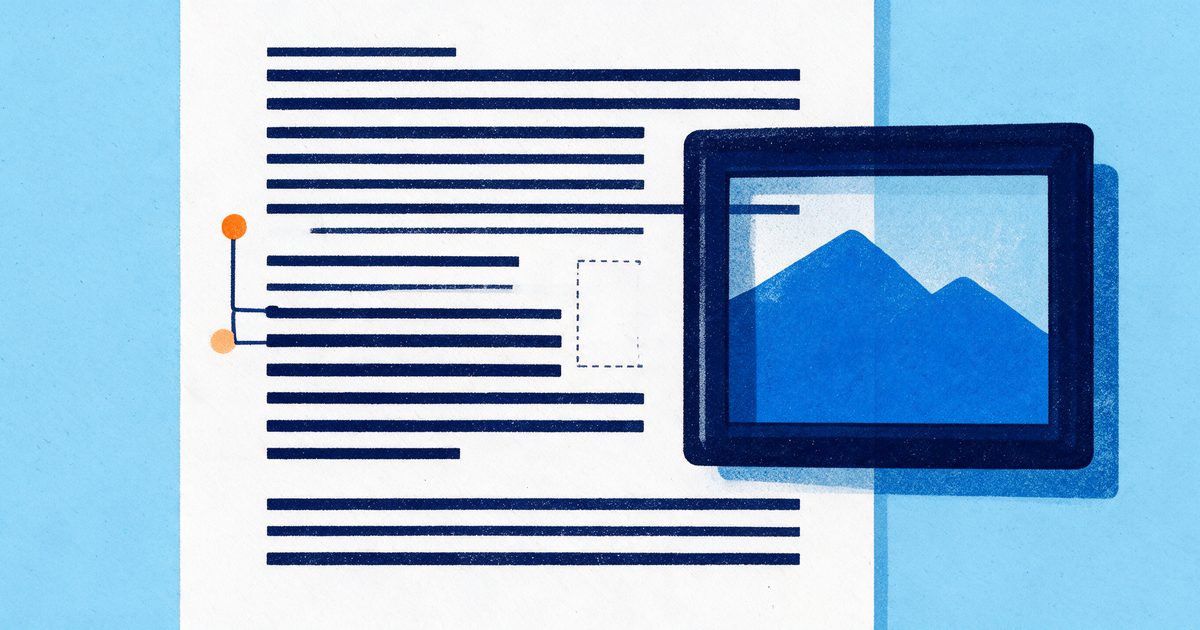
Microsoft has started rolling out a change to Copilot in Word that sounds small and turns out to be rather a big deal for anyone who looks after a Word template. Copilot can now arrange and modify the images and shapes in your document on request. Select a picture, ask Copilot to make it half the size, move the logo to the top right of page one or line up three icons and space them evenly, and it'll have a go.
It was announced alongside citations in Word as part of the September and October Copilot updates, and it's reaching tenants gradually, so it may not have turned up on your machine yet. When it does, the question worth asking is what your template has told Word an image is allowed to do in the first place, because that decides how well Copilot can help.
Copilot works with the same layout settings you do. If those settings were never decided by anyone, Copilot inherits the muddle along with everything else in the file.
What's the difference between an inline and a floating image in Word?
An inline image sits inside a line of text and behaves like a very large character. It moves when the text moves, it can't overlap anything, and it always appears in the reading order exactly where it sits in the paragraph. This is Word's "In Line with Text" layout option.
A floating image sits on a separate layer and is positioned relative to something else (the page, the margin, a column or a paragraph), with text wrapping around it according to one of six wrap settings: Square, Tight, Through, Top and Bottom, Behind Text or In Front of Text. Every floating image is attached to a paragraph by an anchor, which is the little anchor icon you see when the picture is selected. Move or delete that paragraph and the image goes with it, often somewhere you didn't expect.
Both have a place in a well-built document. Inline images are predictable and accessible, and floating images give you the magazine-style layouts where a photo sits beside the text with a caption tucked underneath. The trouble starts when nobody has decided which one belongs where, and every picture in the document is whichever kind the person who pasted it happened to get.
Why "put the chart beside the text" is a harder ask than it looks
Imagine asking Copilot to move a chart so it sits beside the text instead of above it. For an inline image, that means changing its layout to a floating wrap, choosing a position, picking which paragraph it anchors to and deciding how much space to leave around it. Those are four design decisions hiding inside one sentence, and Copilot has to make all of them on your behalf.
If your template has an answer for each of those decisions, Copilot (and every person using the template) has something sensible to work towards. If it doesn't, you'll get an answer that's technically correct and visually unrelated to the rest of the document, because there was nothing in the file to tell anyone what the rest of the document looks like.
Floating images bring a second complication: the anchor. Copilot repositions the image, someone edits the paragraph above it a week later, the anchored paragraph slides onto the next page and the image follows it there, sometimes leaving a gap and sometimes sitting on top of a table. It's the same anchor behaviour that's been catching people out in Word for twenty-odd years, and AI simply makes it happen faster and more often.
What your Word template should decide about images
A well-built template doesn't leave image behaviour to chance. It gives every kind of picture the document uses a defined home, and it makes the correct option the easiest one to reach for.
A figure paragraph style. Most business documents work best with standard images inline, each in its own paragraph using a dedicated style (we usually call it something obvious like "Figure"). That style sets the alignment, the spacing above and below, and "Keep with next" so the image never gets separated from its caption across a page break. When an image is inline in a Figure paragraph, an instruction like "make the picture half its current size" has a predictable result, because the image can only shrink within its own line.
Caption styles that travel with the image. Word's built-in Caption style, set up properly with numbering, gives every figure a label that Copilot, the table of figures and a screen reader can all find. A caption typed as plain text in a text box underneath the image is invisible to all three.
Picture content controls for fixed positions. Covers, team pages and case study layouts often need an image in a set position at a set size. A picture content control reserves that space and sizes whatever goes into it, so a new photo drops in at the right dimensions whatever size it was exported at. It also gives Copilot a clear target, since the control is a named object with a defined boundary.
Pre-built layouts as Quick Parts. For the floating layouts the document needs (a half-width image wrapping square to the right, a full-width image with the caption beneath, a pull-out panel), build each one once with its position relative to the margin rather than the page, save it as a building block in the template, and give it a clear name. People insert the layout and swap the picture, and nobody has to fiddle with wrap settings at all.
Logos in the header. A logo on page one belongs in the first-page header (Different First Page switched on), positioned once and left alone. A logo pasted into the body as a floating picture is the single most likely object in your document to end up somewhere odd after a round of edits, whether a person or Copilot did the editing.
Shapes, icons and the drawing canvas
Copilot's new ability covers shapes as well as pictures, and shapes are where Word documents tend to get messy. A process diagram made from six separate floating shapes, each anchored to a different paragraph, is a lovely thing on the day it's drawn and a scattered jigsaw puzzle after the first tracked-changes edit.
Grouping helps, and a drawing canvas helps even more. A canvas (Insert, Shapes, New Drawing Canvas) is a single container that keeps a set of shapes together and can itself be placed inline. Ask Copilot to line up the icons inside a canvas and everything stays put relative to the text. Ask it to line up six loose shapes with six different anchors and you're relying on luck.
Better still, if a diagram appears in more than one document, it deserves to be built properly once and stored in the template as a building block, using theme colours so it updates with the brand. That gives Copilot and your team one correct version to use, and it saves a dozen hand-drawn approximations piling up on the shared drive.
The accessibility angle
Inline images sit in the reading order exactly where they appear, which is what screen readers and tagged PDF exports rely on. Floating images can end up announced in an odd place or skipped entirely, depending on where their anchor sits. So a template that defaults to inline images, with floating layouts reserved for a defined set of building blocks, is also a template that produces more accessible documents.
It's worth knowing that Copilot moving an image doesn't write alt text for it. If your template prompts for alt text through a picture content control's placeholder text, or your team has a habit of adding it on insert, that carries through. If not, a newly rearranged document can look tidier than ever and still fail an accessibility check.
A setting your template can't control
There's one image behaviour that sits outside the template altogether. In File, Options, Advanced, under Cut, copy and paste, Word has a setting called "Insert/paste pictures as". The default is "In line with text", but it's a per-user setting, so anyone who has changed it (or inherited a changed default from IT) will get floating pictures every time they paste.
A template can't override that setting, which is one more reason the figure style and Quick Parts matter. They give people the correct result regardless of how their copy of Word is set up, and they give Copilot a consistent pattern to recognise across the document.
Will this replace designing the layout?
Nobody at Microsoft is suggesting it will. Copilot moving images on request is a fabulous time-saver for the everyday tidy-up jobs: a logo that's drifted, three screenshots that need lining up, a photo that's twice the size it should be. Paired with a template that's built to handle images, the result is a clean, consistent document no matter who's working on it.
What Copilot won't do is decide that your annual report needs a full-bleed photograph opening each section, or design the custom infographic that explains your service model at a glance. That's design thinking, and it still needs a designer. The template's job is to make sure that once the design exists, it survives every edit afterwards, whether those edits come from a person or from AI.
Where to start
Open a long document your team produces regularly, turn on Show/Hide (Ctrl+Shift+8) and click through the images. Check whether each one is inline or floating, where its anchor sits and whether there's a caption built from the Caption style or typed by hand. If you find a mixture of all of the above, that's normal, and it's also what Copilot will be working with when it reaches your tenant.
Then look at the template behind that document and ask whether it gives people a figure style, a caption style and a handful of named image layouts. If it doesn't, those are the pieces worth building in before your team starts asking Copilot to rearrange things.
Jim is a co-founder of Ideaseed and its technical lead, with deep expertise in Microsoft Office template architecture, automation, VBA, VSTO and Office.js. He builds Word templates where styles, content controls and building blocks are set up to keep documents consistent at scale, and spends a good deal of time testing how AI tools behave inside them.
Wondering how your Word template will cope once Copilot starts moving things around? Our free template health check takes a few minutes and shows you where the gaps are.
Need a branded template? We can turn it around overnight.
Australia's Microsoft Office template specialists with a South Africa team that delivers while you sleep.


RAVE REVIEWS
who we work with


