Why Your PowerPoint Deck Is 180MB

The email bounces. The SharePoint sync stalls. The deck takes forty seconds to open while a room full of people watch a progress bar, and somebody makes a joke about it.
Almost every business has at least one PowerPoint file that's become a problem purely because of its size, and the file is usually between 80MB and 300MB when a deck of the same length should be under 15MB. Almost all of that weight sits in the images, fonts and embedded objects the slides are carrying.
First, look inside the file
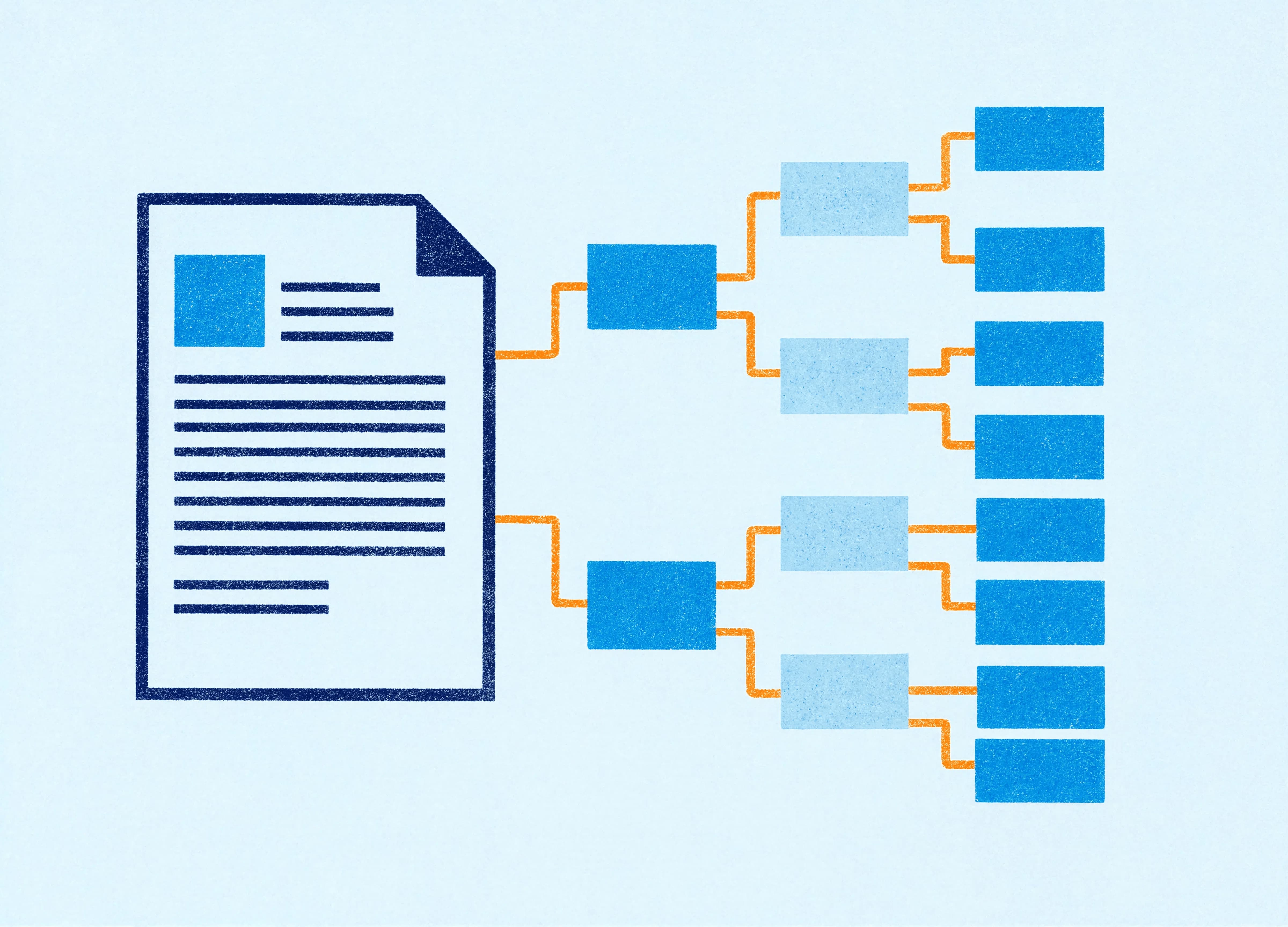
A .pptx file is a zip archive. Take a copy, rename the extension to .zip, and open it. Go into the ppt/media folder and sort by size.
That folder is your diagnosis. You'll usually find four or five images accounting for most of the file, and at least one of them will be something nobody knew was in there: a 22MB photograph on a slide that was deleted from the deck but not from the master, a screenshot saved as a lossless PNG, a logo somebody supplied at 4000 pixels wide.
Do this once and the guesswork stops. It takes about ninety seconds and it works on any Office file, including the Word document that's somehow 60MB.
Where the weight comes from
Full-resolution photos, scaled on the slide. Drag a 24-megapixel photo onto a slide, drag its corner until it fits a quarter of the frame, and PowerPoint keeps every original pixel. The image looks small. The file doesn't know that.
Cropping that doesn't delete anything. Crop a wide photo down to a narrow strip and PowerPoint stores the whole photo, so you can un-crop later. Useful while you're designing, expensive once you've finished.
Screenshots pasted as PNG. PNG is lossless, which is right for logos and line art and wrong for a screenshot of a dashboard. A full-screen PNG capture can run to 8MB where the same image as a JPEG at quality 80 would be 400KB and look identical on a projector.
Embedded workbooks behind charts. Paste a chart from Excel with the workbook embedded and the entire workbook travels inside your deck, including the forty other sheets and the pivot cache. Paste-special as a linked chart or as a picture, depending on whether the data needs to update.
Embedded fonts set to "all characters". File, Options, Save, Embed fonts in the file. The option underneath decides whether you embed only the characters in use or the entire font. Entire font, across a family of six weights, can add 30MB on its own. Embed only the characters used unless somebody else needs to edit the text.
Video and audio. An embedded 90-second video at 1080p is 40MB before you've added a single slide. Compress it externally first, or link it if the deck will always be presented from the same machine.
The slide master. The damage compounds here, because a background image sitting on a layout counts whether or not anyone uses that layout. Forty layouts with a 3MB background photo each is 120MB in a file that may only ever use six of them. Unused masters left behind from an old template do the same thing.
Why does PowerPoint keep it all at full size?
Because of one setting most people never see. File, Options, Advanced, and scroll to Image Size and Quality.
There's a checkbox there called Do not compress images in file. If it's ticked, nothing gets compressed, ever. Underneath it, a Default resolution dropdown sets what happens when compression does run: options run from 96ppi through 150 and 220 up to High Fidelity, which preserves the original.
The 220ppi default is a print-quality setting applied to files that are almost always shown on a screen. It's a reasonable conservative choice by Microsoft and a poor one for the average business deck.
There's a third option in that group, Discard editing data, which throws away the undo information stored with edited images. Tick it for finished decks.
These settings apply per file rather than globally, which is why fixing one deck doesn't fix the next one. Set them in the template and every deck built from it inherits them.
Compressing properly
Select any image, go to the Picture Format tab, click Compress Pictures. Untick "Apply only to this picture" so it runs across the deck. Tick Delete cropped areas of pictures. Then choose a resolution.
What to choose depends on where the deck is going. 220ppi for anything that will be printed at A4 or larger. 150ppi for a deck that will be presented and emailed, which is most of them, and which usually cuts the file by 60 to 80 per cent with no visible difference on screen. 96ppi for a deck that only needs to survive being read on a laptop.
Save a copy before you do this. Compression is applied on save and the original pixels are gone afterwards.
When compressing makes the file bigger
It happens, and it confuses people. Two reasons.
If your images are already well-optimised JPEGs, PowerPoint's compression re-encodes them, and a second pass of lossy compression on an already-compressed image can produce a slightly larger file along with visible artefacts. The deck was already fine.
The other cause is transparency. PNGs with alpha channels can't be converted to JPEG without losing the transparency, so PowerPoint keeps them as PNGs and any resizing can go the wrong way. Logos with transparent backgrounds belong in the master as small, optimised files, or better, as vector shapes.
The template is the actual fix
Every technique above is remedial. It treats a deck that's already in trouble. The decks that never get into trouble were built on templates that made the right choices before anyone opened them.
Logos as vector. A logo built as native PowerPoint shapes, or placed as an EMF, is a few kilobytes, scales to any size without softening, and recolours with the theme. A logo supplied as a 4000-pixel PNG is 2MB, sits on every master layout, and looks slightly fuzzy at large sizes. The first takes a designer an hour. The second costs the business for the life of the template.
Picture placeholders sized to the grid. When a layout has a picture placeholder at the right proportions, people drop an image in and it fills the frame correctly. When it doesn't, people paste and drag, which is how full-resolution photos end up scaled to a quarter size. Placeholders are a file-size feature as much as a design one.
Image layouts that cover the real cases. Full-bleed, half-page with a text panel, a three-across grid, a portrait for headshots. Give people the layouts they need and they stop improvising.
Backgrounds built as shapes and gradients rather than photographs, wherever the design allows. A gradient mesh built from native shapes weighs nothing and scales cleanly to any aspect ratio, including the 4:3 version nobody remembers until a client asks for it.
The image settings pre-configured in the template file, so the compression defaults are right from slide one.
Size your images before they reach the deck
The cheapest fix happens before anyone opens PowerPoint. If your business has a photography library, and most do, the files in it are almost certainly print-resolution originals that nobody has ever prepared for on-screen use.
A simple set of export conventions solves it. A full-bleed background image on a 16:9 slide needs no more than 1920 pixels across, and 2560 if you want headroom for a large screen. A half-slide image needs about 1200. A headshot in a team layout needs 600. JPEG at quality 80 for photographs, PNG only where transparency is required, and SVG or native shapes for anything that's really a graphic.
Save a "presentation" folder alongside the originals, export once at those sizes, and point people at it. A marketing team that drops correctly sized images into correctly sized placeholders produces decks that are small by default, and nobody has to remember a compression step at the end.
The same logic applies to anything coming in from outside. Client logos supplied for a proposal arrive as whatever the client had to hand, which is often a 5000-pixel PNG from a press kit. Ten seconds resizing it before it goes in saves a conversation about file sizes a fortnight later.
Why it matters beyond the inconvenience
Most email gateways reject attachments over 20 to 25MB, so a 180MB deck gets sent as a link, which means somebody downloads it, edits their copy, and now there are two versions.
Large files sync slowly and conflict often. A 200MB deck being co-authored by four people in SharePoint produces conflict copies, and conflict copies produce the wrong version going to the client.
And there's the moment in the room. A deck that takes forty seconds to open in front of a prospect is a small, avoidable signal about how the business operates. Nobody mentions it, and everybody in the room has already formed a view.
A twenty-minute clean-up
If you've got a problem deck in front of you right now: copy it, rename it to .zip, look in ppt/media, and find the five biggest files. Go back to the original, delete anything unused, replace oversized images, check the slide master for background photos on layouts nobody uses, then run Compress Pictures at 150ppi with cropped areas deleted and editing data discarded.
That sequence usually takes a deck from 180MB to under 15MB, and the difference on screen is invisible.
Then have a look at the template it came from, because whatever caused it will happen again next quarter.
Nat is a designer at Ideaseed working across presentation design, document design, graphic design and accessible content. She builds the layout and image systems inside enterprise PowerPoint templates, so decks stay light, stay on-brand and open when somebody needs them to.
Not sure what your template is doing to your file sizes? Our free template health check takes a few minutes and tells you what's worth fixing.
Need a branded template? We can turn it around overnight.
Australia's Microsoft Office template specialists with a South Africa team that delivers while you sleep.

RAVE REVIEWS
who we work with


.svg)
.svg)
.svg)
.svg)








