How to Roll Out a Microsoft Office Template Across Your Business
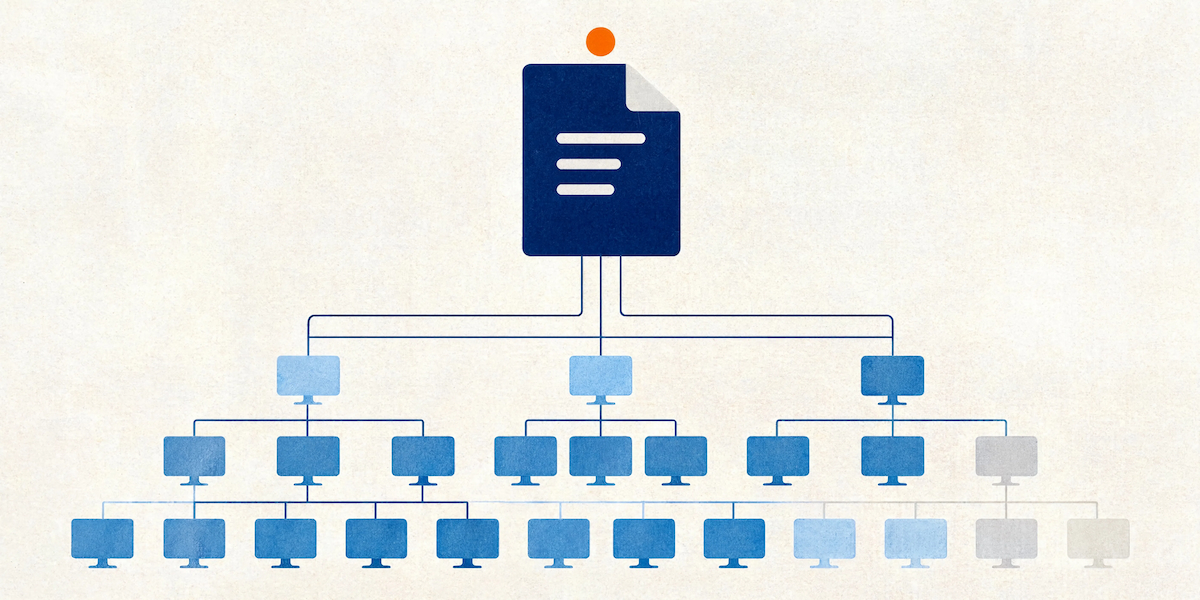
The template is finished. It's beautiful, it's tested, every layout works and the automation does what it promised. Then someone asks how 500 people across nine offices are going to get hold of it, and the room goes a bit quiet.
Rolling out a Microsoft Office template across a business is a separate project from building one, and it's the one that decides whether anybody actually uses the thing. Plenty of excellent templates have died in a shared drive folder called "Brand Assets FINAL v3."
Why emailing the file doesn't work
It works for about a fortnight. Then a few things happen at once.
Half the recipients save it to their desktop and it stops being a template, becoming instead a document they open and re-save under a new name. A third of them never open the email at all. Someone forwards it to a colleague who forwards it to a contractor. Six weeks later you update the template because the sub-brand colours changed, and nobody knows who has which version.
Then the version that spreads fastest turns out to be the one someone modified to remove a layout they found annoying. That's the file circulating in your finance team eighteen months from now.
Distribution should be something people receive automatically. Anything that relies on staff remembering to go and fetch a file will fail.
Where should a company template actually live?
Three approaches are worth knowing about, and most businesses end up using two of them together.
The organisation assets library. This is the cleanest option for Microsoft 365 tenants. You designate a SharePoint document library as an Office template library, and approved templates then appear as a tab named after your business when anyone selects File then New in Word, Excel or PowerPoint.
A SharePoint administrator sets it up through the SharePoint Online Management Shell with Add-SPOOrgAssetsLibrary, specifying the library URL and setting the asset type to OfficeTemplateLibrary. Set the CDN type to Private unless you'd like your templates available to the general public, which you wouldn't.
A few practical notes that catch people out. Files must be in true template formats: .potx for PowerPoint, .dotx for Word, .xltx for Excel. Users need at least read permission on your tenant's root site or the tab won't appear at all. Desktop apps need Microsoft 365 Apps version 2002 or later. And it can take up to 24 hours to show up, so don't panic on day one. In PowerPoint on the web the templates don't appear under New; users go to the PowerPoint start page and choose Office Template Library instead, which is worth putting in the training notes.
The Workgroup Templates path. The older approach, still perfectly good, and useful when you want templates present in a specific location on managed devices. You point Office at a shared location through policy: the Office Cloud Policy Service, an Intune settings catalog profile, or traditional Group Policy under Shared Paths. Templates in that location appear in the New dialog on every managed machine.
This one gives you tighter control over which devices get what. It also means templates are available when someone's on a plane with no connection, which matters more than people expect in industries where documents get finished in transit.
A custom add-in. When the template set is large or the workflow is complex, the answer is often a ribbon of your own. Our DocuBuilder Toolbar sits in Word and gives people a single button for the things they'd otherwise have to hunt for: insert the right cover page, build the table of contents, drop in an approved chart, apply the correct table style.
An add-in also solves distribution neatly, because it updates centrally. Nobody is running last year's version, because there's only one version and it lives in one place. Built with VSTO or Office.js depending on whether the business is Windows-only or mixed Mac and PC, and the Office.js route means the same toolbar works across desktop, web and Mac.
Version control, and the day the brand changes
Every template has a second life the moment marketing announces a refresh. The question is how much work that costs you.
With a central library, an update is one file replaced and everyone has the new version on their next New document. With emailed files, an update is a communications campaign followed by eighteen months of stragglers.
Two habits make the central approach work properly. First, keep the file name stable across versions and manage versions in SharePoint's own version history rather than in the file name. Nobody wants to choose between "Corporate Deck v4" and "Corporate Deck v4 FINAL." Second, when you replace a template in an organisation assets library, allow for cache. Users sometimes see the previous version for a while, and the fix is usually patience plus clearing the Office document cache rather than a rebuild.
What about the documents that already exist?
This is the question that gets left off rollout plans, and it's the one that determines whether the new look actually appears in the world.
Your business has hundreds of live documents. Proposals in flight, reports mid-review, the deck the sales team has been adapting for two years. None of them update themselves when you publish a new template, because a template is only applied at the moment a document is created.
Three sensible options depending on volume. Convert the high-value documents properly, rebuilding them onto the new template so they inherit the styles, layouts and automation. Retire the ones nobody has opened in a year and stop pretending they're assets. And for the middle group, set a date after which the old look isn't acceptable externally, then give people the tools to rebuild quickly.
Document conversion is unglamorous work and it's usually the difference between a rollout that sticks and one that fizzles. We do a great deal of it, with a team available around the clock, seven days a week, so a large conversion job doesn't have to wait in a queue behind everything else. It's rarely as bad as clients fear once the destination template is solid.
Training belongs in the rollout plan
A well-built template contains capability people won't discover on their own. Layouts they don't know exist, automation that saves twenty minutes, a table style that's already correct, a toolbar button that builds the document structure in one click.
Thirty minutes of training changes the adoption curve dramatically. It also surfaces the objections early, and the objections are useful. If three people in the session ask where the old landscape layout went, you've learnt something about how the template actually gets used.
Record the session. New starters arrive constantly and none of them were in the room.
The AI angle nobody planned for
There's a reason to sort out your asset library that didn't exist two years ago. Copilot Cowork can now pull branded PowerPoint templates directly from your asset library, so decks it generates start with approved colours, fonts, logos and layouts rather than needing cleaning up afterwards. Copilot in PowerPoint can also use branded assets from the Microsoft 365 Brand Kit.
That only works if your templates are in the library, in the right format, and correctly built underneath. Businesses that sorted out distribution properly are getting a benefit they never planned for. Businesses still emailing .potx files around are watching AI generate decks from Microsoft's default theme.
A rollout checklist
If you're planning one, work through this:
- Decide the distribution method before the build finishes, because it affects file structure and naming
- Confirm formats are .potx, .dotx and .xltx, not .pptx and .docx pretending to be templates
- Check permissions on the root site and the library, then test with a normal user account rather than an admin one
- Test on Windows, Mac and web, because they behave differently and someone on your team uses each
- Plan the legacy document conversion before launch rather than six months afterwards
- Book the training and record it
- Agree who owns the template and who approves changes, in writing, now
That last one matters more than it looks. Templates decay when ownership is vague, because the moment nobody owns it, everybody edits it.
Build for the rollout from the start
The strongest rollouts are the ones designed in from the beginning. How the file will be distributed shapes how it's built: whether an add-in is worth it, how the layouts are named and ordered, whether automation runs from the template or from a central toolbar, how updates will be pushed.
Deciding that after the design is signed off means retrofitting, and retrofitting is how bulletproof templates stop being bulletproof. Build it once, build it correctly, and get it into people's hands in a way that doesn't rely on anyone remembering an email from March.
Claire is a design and template specialist at Ideaseed with experience across presentation design, document design, accessibility and Microsoft Office template automation. She works with clients through the full lifecycle of a template project, from build and testing through to business-wide deployment, legacy document conversion and team training.
Planning a template rollout, or wondering why the last one didn't stick? Take our free template health check: ideaseed.com.au/questionnaire
Need a branded template? We can turn it around overnight.
Australia's Microsoft Office template specialists with a South Africa team that delivers while you sleep.


RAVE REVIEWS
who we work with


.svg)
.svg)
.svg)
.svg)








