Why Your Word Tables Fall Apart
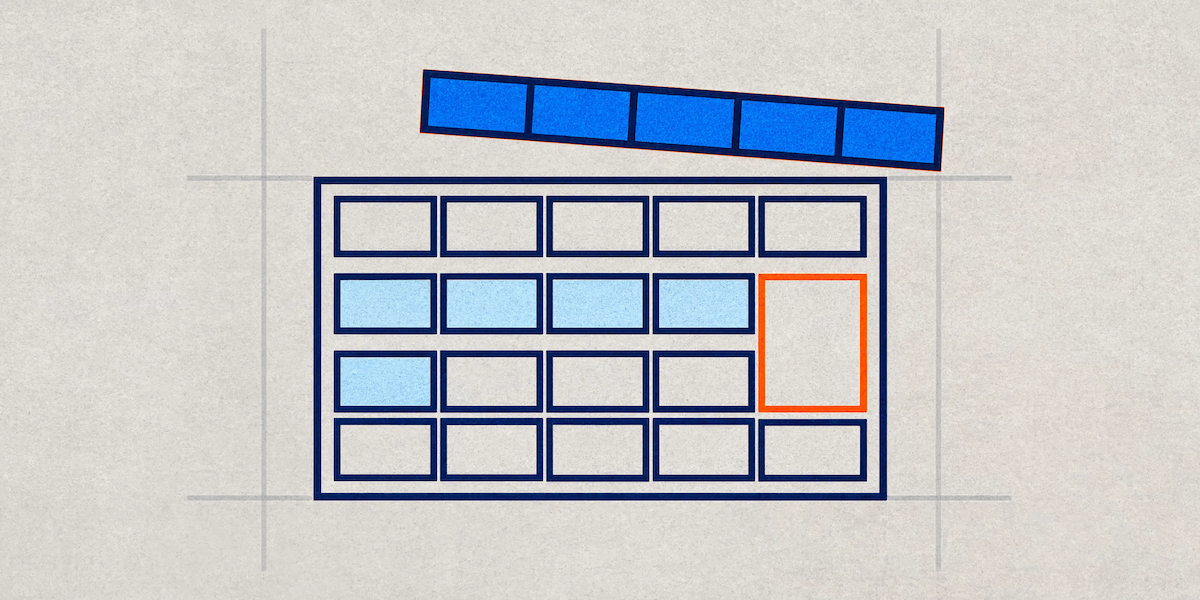
The table looked perfect on Friday. Four columns, tidy headers, sensible borders, all sitting neatly on page two. On Monday somebody added eleven rows of data, and now the header has vanished from page three, one row is sliced in half across a page break, and the whole thing has drifted three centimetres wider than the margins. Nobody changed the formatting. It fell apart on its own.
Word tables break more often than any other element in a business document, and they break in ways that feel arbitrary. They aren't. Almost every table problem traces back to a handful of settings, most of which live in dialogue boxes people never open.
Why tables behave differently from everything else
A paragraph in Word is simple. It has a style, it flows, and when it reaches the bottom of a page it continues onto the next one.
A table is a container full of containers, each with its own rules about width, height, padding, borders and page-break behaviour, sitting inside a parent that has its own rules about all the same things. Change the content in one cell and the row height recalculates, which shifts the rows below it, which can push a row across a page boundary, which triggers a completely different set of settings that were sitting there dormant.
That's why a table can look immaculate for months and then collapse the first time someone pastes in a longer product name.
Why won't my header row repeat?
This is the most-searched Word table question, and the answer is usually one of five things.
Text wrapping isn't set to None. This catches nearly everyone. Open Table Properties, go to the Table tab, and check the Text Wrapping setting. If it's set to Around, the header row will never repeat, no matter how many times you tick the box. Word only repeats headers on tables set to None.
You've selected the wrong row. The repeating header has to include the first row of the table. You can repeat the first two or three rows if your header is stacked, but the selection must start at row one.
You're looking at it in the wrong view. Header rows only repeat in Print Layout. In Web Layout or Draft view they don't appear at all, which leads a lot of people to conclude the feature is broken when it's working exactly as intended.
It isn't one table. If someone used Split Table, or there's an empty paragraph sitting between two tables that look joined, Word treats them as separate objects. The second one has no header row because it never had one. Delete the paragraph between them and Word usually reconnects them.
Merged cells in the header. Merging across the top row confuses Word's page-break calculation, and the header repeat stops working without any warning.
To set it correctly: select your header row, open Table Properties, go to the Row tab, and tick "Repeat as header row at the top of each page." Or select the row and use Repeat Header Rows on the Layout tab, which does the same thing in one click.
The row sliced in half
When a row splits across a page break, half your cell content sits at the bottom of one page and the rest appears at the top of the next. It looks like a mistake because it is, and the setting that causes it is on by default.
Select the whole table, open Table Properties, go to the Row tab, and untick "Allow row to break across pages." Applied to the entire table, this stops any individual row from being cut in two. Word will move the whole row to the next page instead.
One caveat worth knowing: if a single cell contains so much text that it can't fit on one page, that content shouldn't be in a table at all. Word has nowhere to put it, and no setting will rescue you.
Merged cells are the root of most of it
Merging cells is the most tempting thing in Word tables and the most expensive. It looks like layout control. What it actually does is break the grid that everything else depends on.
Merged cells interfere with header row repetition. They make row-break settings unreliable, since a merged row spanning several rows can't be kept together in the normal way. They make it near impossible to sort or filter the data later. And they make the table unreadable to a screen reader, because the relationship between a cell and its column header stops being unambiguous.
When a table needs merged cells to make sense, that's usually a signal it's carrying two different sets of information at once. Splitting it into two simpler tables solves the layout problem and the accessibility problem in one move, and it's almost always easier to read.
Table styles versus formatting it by hand
Everything above is about behaviour. This one's about consistency, and it's the difference between a document that survives editing and one that doesn't.
A table style is a named, reusable definition covering borders, shading, header formatting, banded rows and cell padding, applied to the whole table at once. Change the style, and every table using it updates together. Word also gives table styles conditional formatting, so the header row, the first column, the total row and the banded rows can each carry their own treatment inside a single definition.
Format a table by hand instead, selecting cells and applying shading and borders one at a time, and you've created a one-off that matches nothing else in the document. The next person copies it, adjusts it slightly, and now you have two nearly-identical table looks. Multiply that across a sixty-page report with four contributors and the tables become the most visually inconsistent element in the whole document.
Table styles also inherit from the theme, so a table built on a proper style picks up your brand colours automatically. One built by hand carries whatever hex codes somebody typed in, and it won't update when the brand does.
What happens when you paste from Excel
A great many broken Word tables started life in a spreadsheet.
Paste from Excel and Word offers you several options, and the default is rarely the one you want. Keep Source Formatting brings the spreadsheet's fonts, colours, column widths and cell padding into your document, which is why pasted tables look nothing like the tables around them. Merge Formatting adapts the content to the destination document's style, which is usually the sensible choice. Paste as Picture gives you an image that pixelates in the PDF and can't be edited or read by anything.
For a table that will need updating, Merge Formatting and then applying your document's table style gives you something native, on-brand and editable. It takes about four seconds longer than the default and saves a great deal of tidying later.
Accessibility, and why AI cares too
A header row isn't decoration. Marking a row as a header tells Word, and everything that reads the file afterwards, that those cells are labels rather than data.
Screen readers use that to announce the column heading alongside each cell value, so a listener knows that "£48,200" belongs to Q3 Revenue rather than hearing a stream of unlabelled numbers. Without a marked header row, a data table becomes noise. Adding alt text and a caption to each table completes the picture, and both take seconds.
The same structure now determines how well AI tools handle your documents. When Copilot or another assistant reads a report to summarise or restructure it, a table with a marked header row and no merged cells is data it can interpret. A table of merged cells with a header that's simply bold text is a grid of disconnected values. Ask it to summarise the numbers and you'll find out quickly which kind you have.
What a well-built template does about all this
None of these settings are difficult. The problem is that every one of them has to be applied by whoever creates the table, on every table, forever, and nobody remembers all of them at 4pm on a Thursday.
A template solves it by making the correct behaviour the default. That means a defined set of named table styles matching how your documents actually use tables: a standard data table, a financial table with a total row, a compact table for appendices, each with header formatting, banded rows, cell padding and theme colours already set. It means those styles carrying the right header and row-break behaviour from the moment a table is inserted. And where the documents are complex enough to warrant it, a toolbar button that inserts a correctly configured table in one click, rather than trusting fourteen people to work through a dialogue box.
Our DocuBuilder Toolbar does exactly that in Word, because table setup is one of those tasks where automation pays for itself within a fortnight.
Where to start
Open your longest report and find a table that runs over a page break. Does the header repeat? Is a row split in half? Click into it and check whether a real table style is applied or whether it says Table Grid with formatting layered on top.
What you find tells you whether your documents are built on structure or on the memory of whoever last touched them. Tables are where that distinction shows up first, because they're the element most likely to be edited by someone in a hurry.
Claire is a design and template specialist at Ideaseed with experience across document design, Microsoft Word templates, accessibility and template automation. She builds Word templates with table styles, styles and automation configured from the start, so documents stay consistent and readable however many people edit them.
Tired of tables that fall apart the moment someone adds a row? Take our free template health check: ideaseed.com.au/questionnaire
Need a branded template? We can turn it around overnight.
Australia's Microsoft Office template specialists with a South Africa team that delivers while you sleep.



RAVE REVIEWS
who we work with


.svg)
.svg)
.svg)
.svg)








