we do microsoft templates
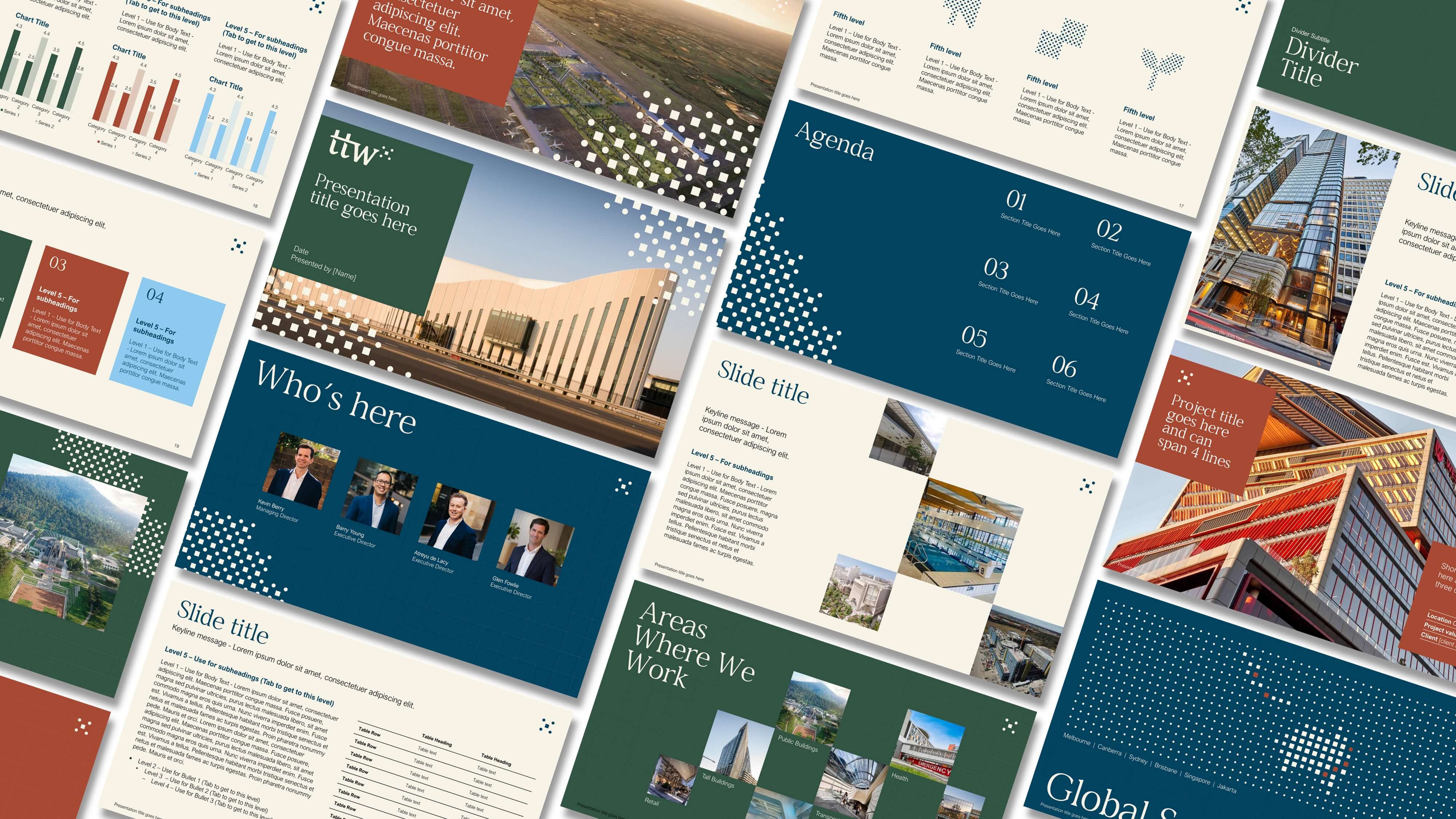
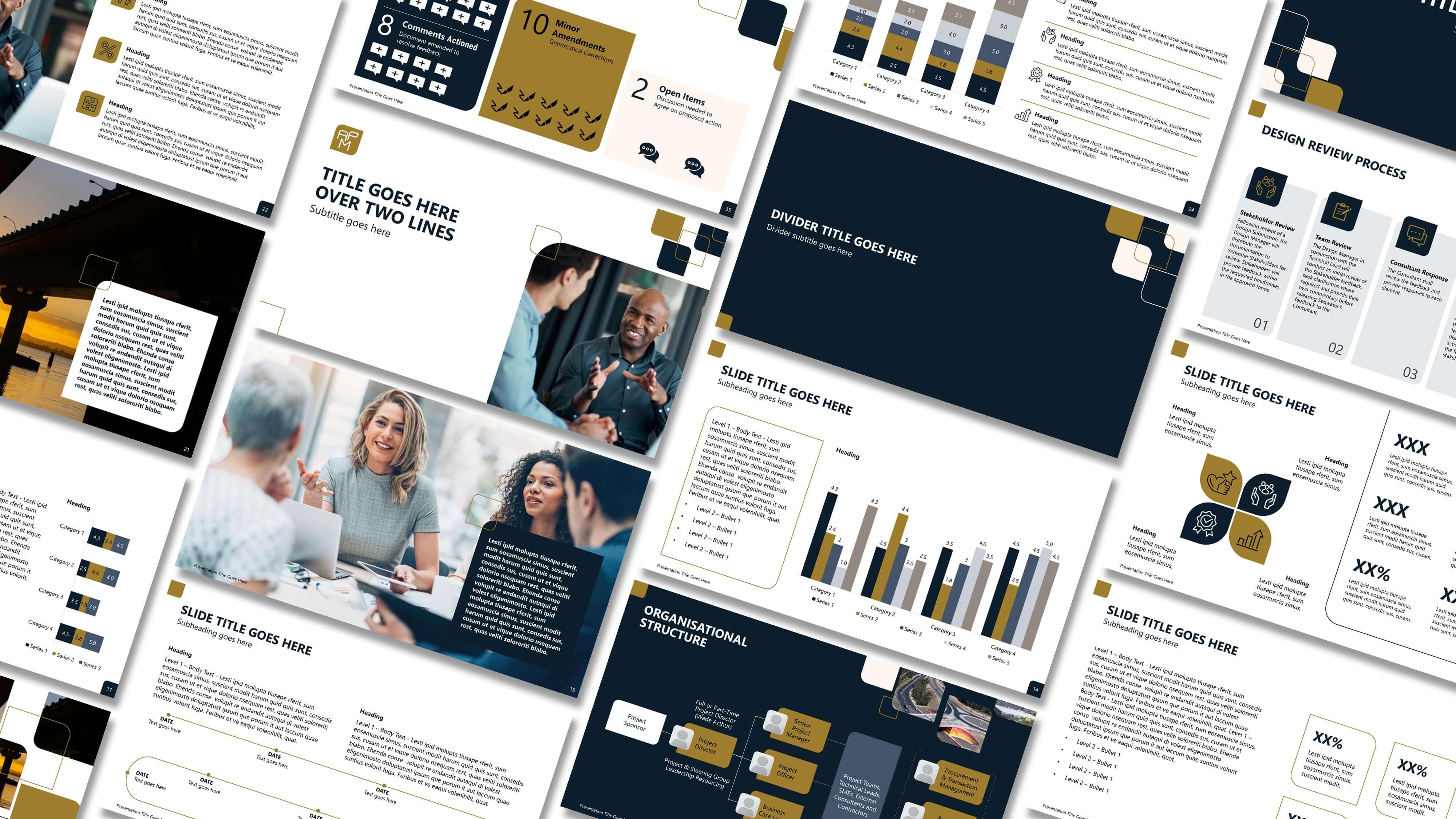
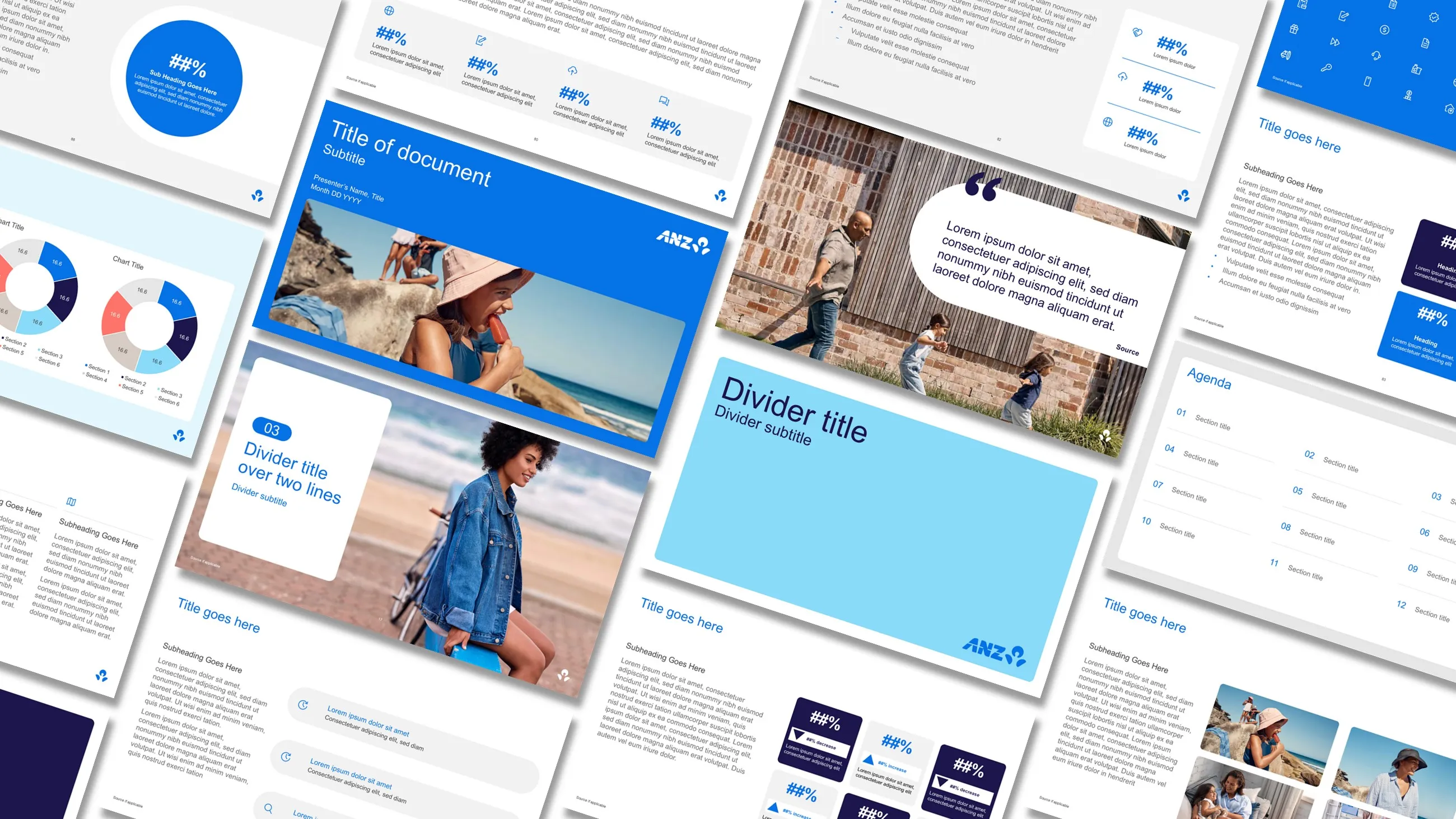
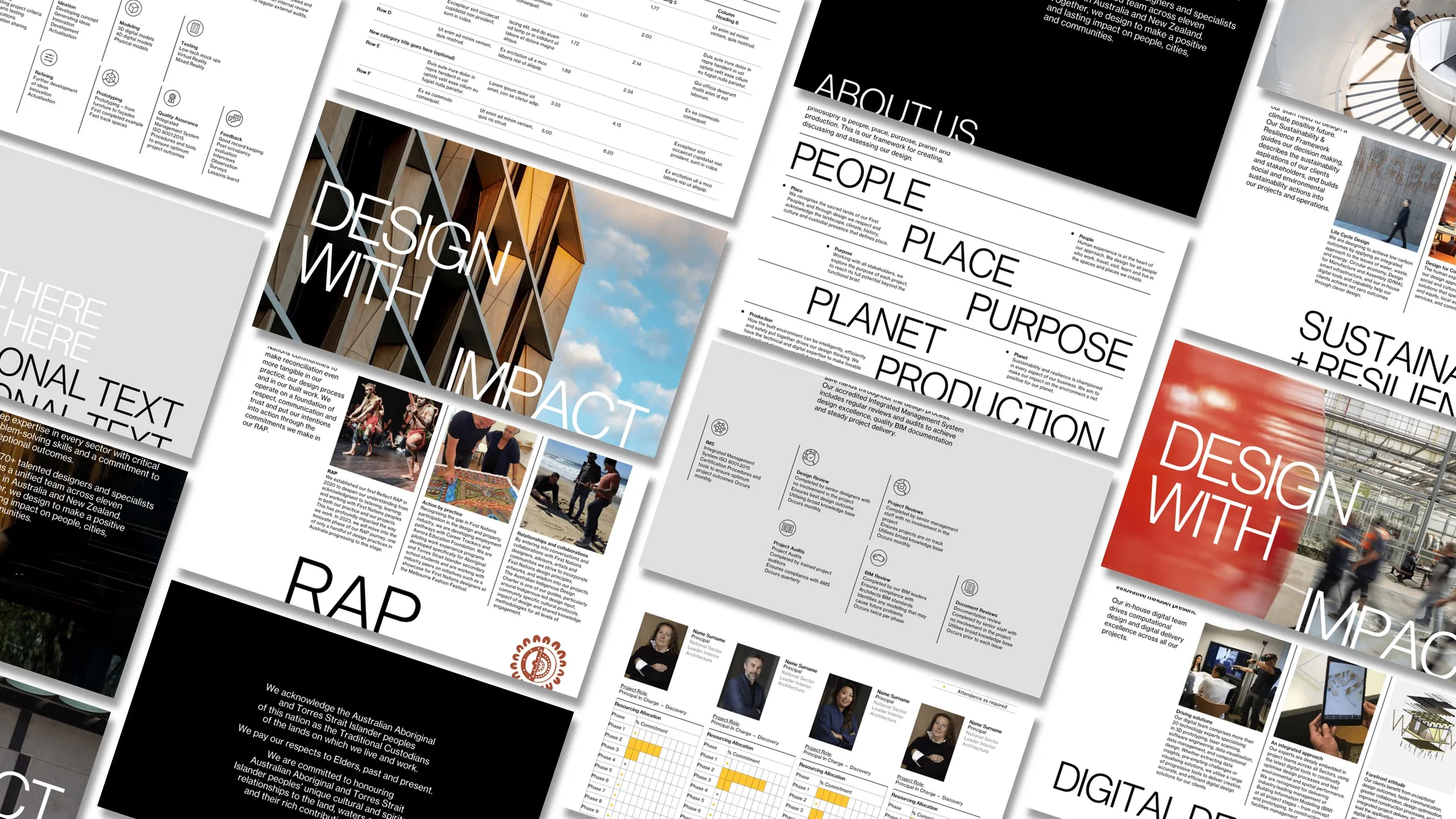
Tired of struggling with outdated, clunky templates? Let's upgrade your Microsoft experience. We design custom Word, PowerPoint, Excel, and Outlook templates that are easy to use, on-brand, and built to save your team time. From sleek reports to eye-catching presentations and organised spreadsheets, our templates are also built for the AI-powered workplace, so they perform just as well when your team is working with AI as when they're working without it. Great-looking documents that actually work, every time.


The ideaseed DocuBuilder Toolbar
Documents made simple
Boost efficiency and ensure brand compliance across all teams with the Ideaseed DocuBuilder toolbar. It streamlines document production in Word, letting your team create consistent, on-brand collateral effortlessly by inserting pre-designed page layouts and content with a single click.
Want to take it even further? Speak to us about our advanced macro-enabled custom ribbons for Word and PowerPoint.
.webp)
HOW ELSE CAN WE HELP?
Presentation design
Ready to lift your presentation game? Check out our latest projects, get some inspo, then get in touch.
Document design
When you need reports, proposals, information memorandums, capability statements or tenders to look impressive, we’re the experts who get it done fast and make you look good.
Graphic design
From eye-catching social media pieces, to polished brochures, web design and motion graphics, we’re here to handle all your design needs.
Training
We don’t just deliver your templates and disappear—we’re here to make sure your team thrives with them! Our MS Office experts offer interactive on-site or virtual training sessions, whether for a small group or a whole company. Plus, we’ve got you covered with video tutorials and user manuals to keep everyone confident and on track.
who we work with


.svg)
.svg)
.svg)
.svg)








The ideaseed difference
We’re fast. Really fast
We know time is of the essence, so we pride ourselves on quick, efficient delivery without sacrificing quality. Whether you have a tight deadline or need a last-minute update, our team is committed to delivering polished results within even the tightest timeframe.
We get AI
AI is changing how teams work. We build templates that give AI the best possible foundation - clean layouts, properly styled headings, and logical formatting that AI can actually read and use. Not all templates are equal when AI enters the room. Ours are built ready.
We’re reliable. Always
Our clients trust us because we consistently deliver beautiful, high-quality work. We understand the importance of dependable tools in your business, and we never compromise on quality or functionality.
We go the extra mile
We don’t just meet expectations; we exceed them. We take the time to understand your needs and find creative, tailored solutions that make your work easier and more effective. Our commitment to going above and beyond means you get more than just a template — you get a partner who genuinely cares about your success.